A reporting period is the time a report covers, such as a quarter or a year. A finalized period is one whose figures have been accepted as complete.
If someone later changes the data or calculation behind a finalized figure, quietly replacing the number would hide what was reported before. A restatement is an approved correction that keeps that history visible so auditors, investors and regulators can see what changed and why.
Hydrus first flags the change as a restatement candidate: a change that might need to become a restatement and is waiting for a person to decide. It records the affected figure and report, the old and new values, and when the change happened.
You check the change, explain why the figure needs correcting, and submit it for an Admin to approve. Approval adds the correction to the report; publishing a new snapshot creates a saved report version with that correction.
The finalized calculation and earlier snapshots keep their original figures.
Find a change to review
- Open Audit.
- Select Restatements.
- Open Candidates.
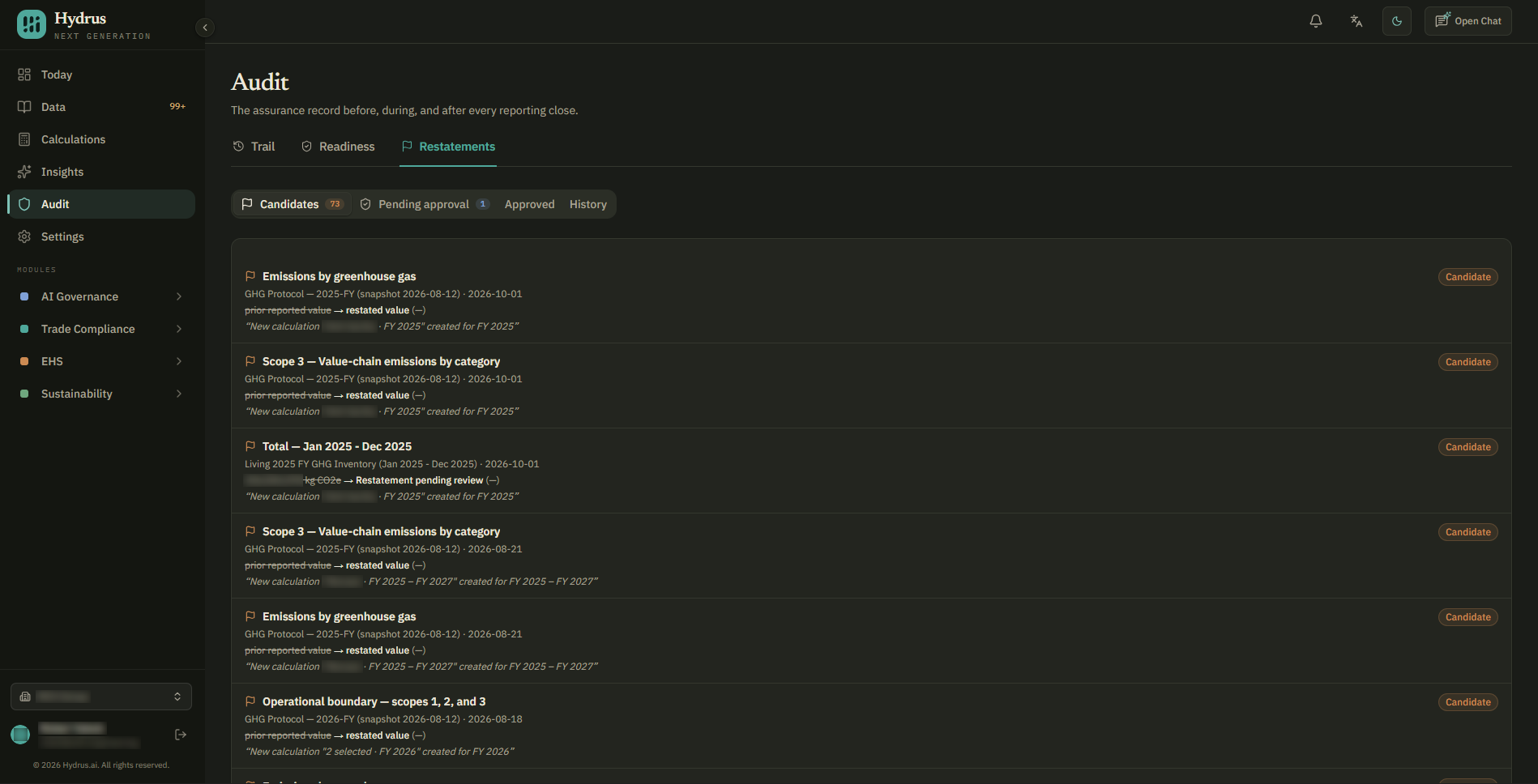
The tabs show where each change is in the review process:
| Tab | What it contains |
|---|---|
| Candidates | Changes Hydrus spotted that might need a restatement and are waiting for a person's review and reason. |
| Pending approval | Restatements awaiting an Admin's decision. |
| Approved | Approved corrections shown on the affected reports. |
| History | Rejected restatements and candidates cancelled after a change was undone. |
Each row shows the affected figure and report, when the change happened, the old and new values, and the current reason.
Check what changed
- Select a candidate to open its details. Compare the original and proposed values, if shown.
- Open the linked report to check where the figure is used. If no report uses it yet, the link opens the calculation.
- Read the audit events, the record of actions taken in Hydrus, to see who made the change and what they changed.
If the details show text such as “restated value” instead of numbers, confirm the figures in the linked report or calculation before continuing.
Scope 2 covers emissions from purchased energy, such as electricity. An electricity emission factor is the number used to convert electricity use into emissions.
For example, a Scope 2 total may have changed because someone applied a different electricity emission factor. Check which period was affected and how much the total changed.
Write the reason
In restatement reason, replace the starting note with a clear explanation of the correction. Say what changed, why it changed, and which period it affects. Use the past tense and write for someone outside your team.
For example:
Added a missing month's electricity use to the Q2 total after receiving a late invoice.
For help with the wording, select suggest reason. Hydrus AI drafts an explanation labelled “Drafted by Hydrus AI” until you edit it. Check the draft against the source data and audit events before using it.
Your reason must be at least 20 characters long. Finish it before submitting. Changes to the submitted reason are not saved while approval is pending.
Submit for approval
Admins and Editors can submit a restatement.
-
Select submit for approval.
-
Check the figure, the difference, and your reason in the confirmation window. It also shows your email and the time of signing.
next.hydrus.ai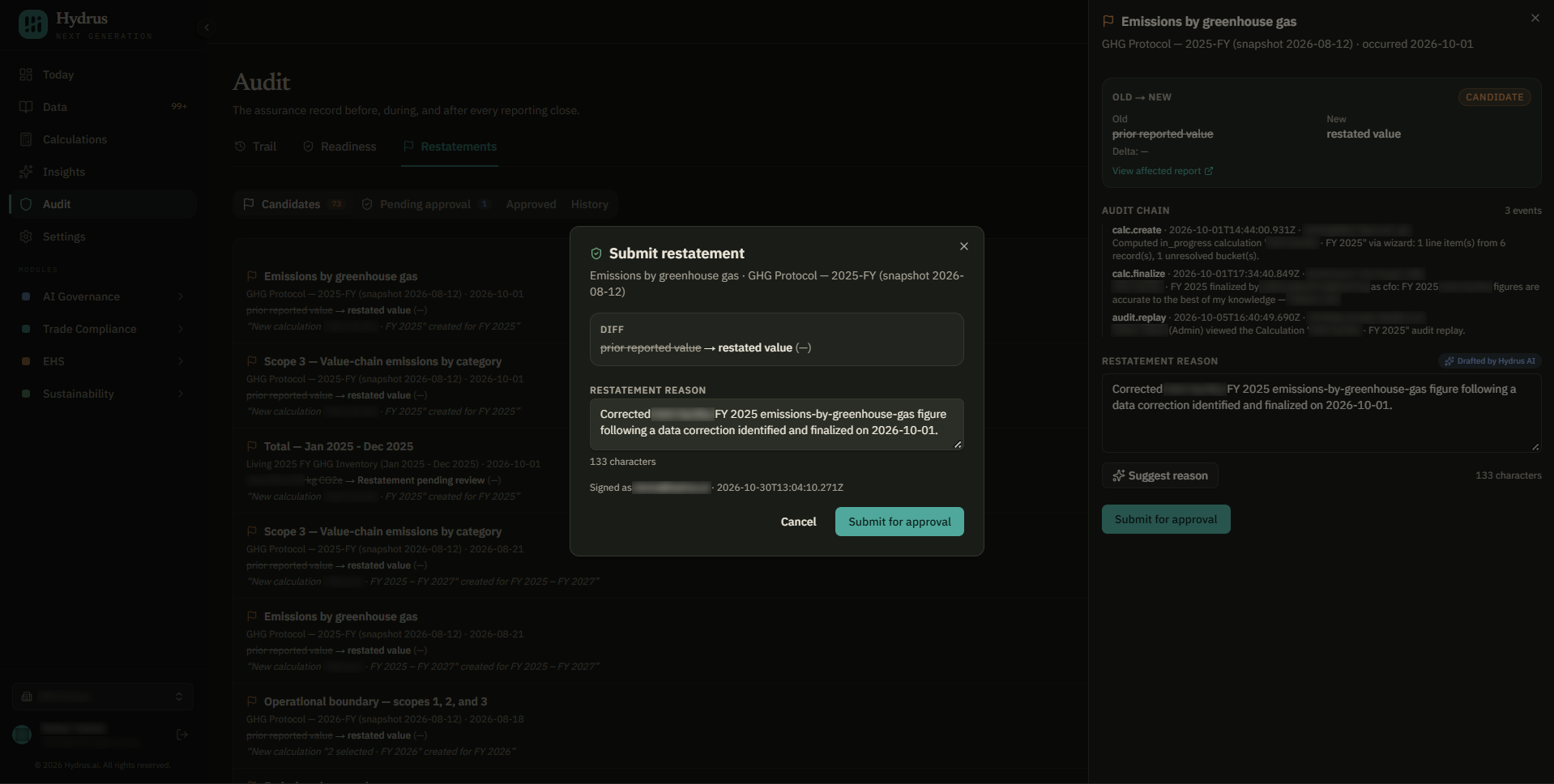
-
Select submit for approval again to confirm.
The restatement moves to Pending approval for an Admin to review.
Approve or reject
Only Admins can make this decision.
- Open Pending approval in Audit > Restatements.
- Select the restatement and review the figures, reason, and audit events.
- Select decide.
To approve the correction, select approve. The report shows the original figure crossed out beside the corrected figure. A banner shows the reason, approval date, and who approved it.
To reject the correction:
- Replace the text in the reason field with an explanation of why you are rejecting it.
- Select reject.
Hydrus saves that text as the rejection reason and moves the restatement to History.
Both decisions are final. You cannot edit, reopen, or delete an approved or rejected restatement.
An Admin can approve their own submission. If your process requires a separate reviewer, have another Admin make the decision.
Publish a new report snapshot
The living draft is the working version of the report. Approval adds the correction to that report, but a snapshot you already published still shows the earlier figures.
- Open the affected living draft report.
- Check that the approved restatement appears.
- Select publish snapshot to create a new snapshot with the correction.
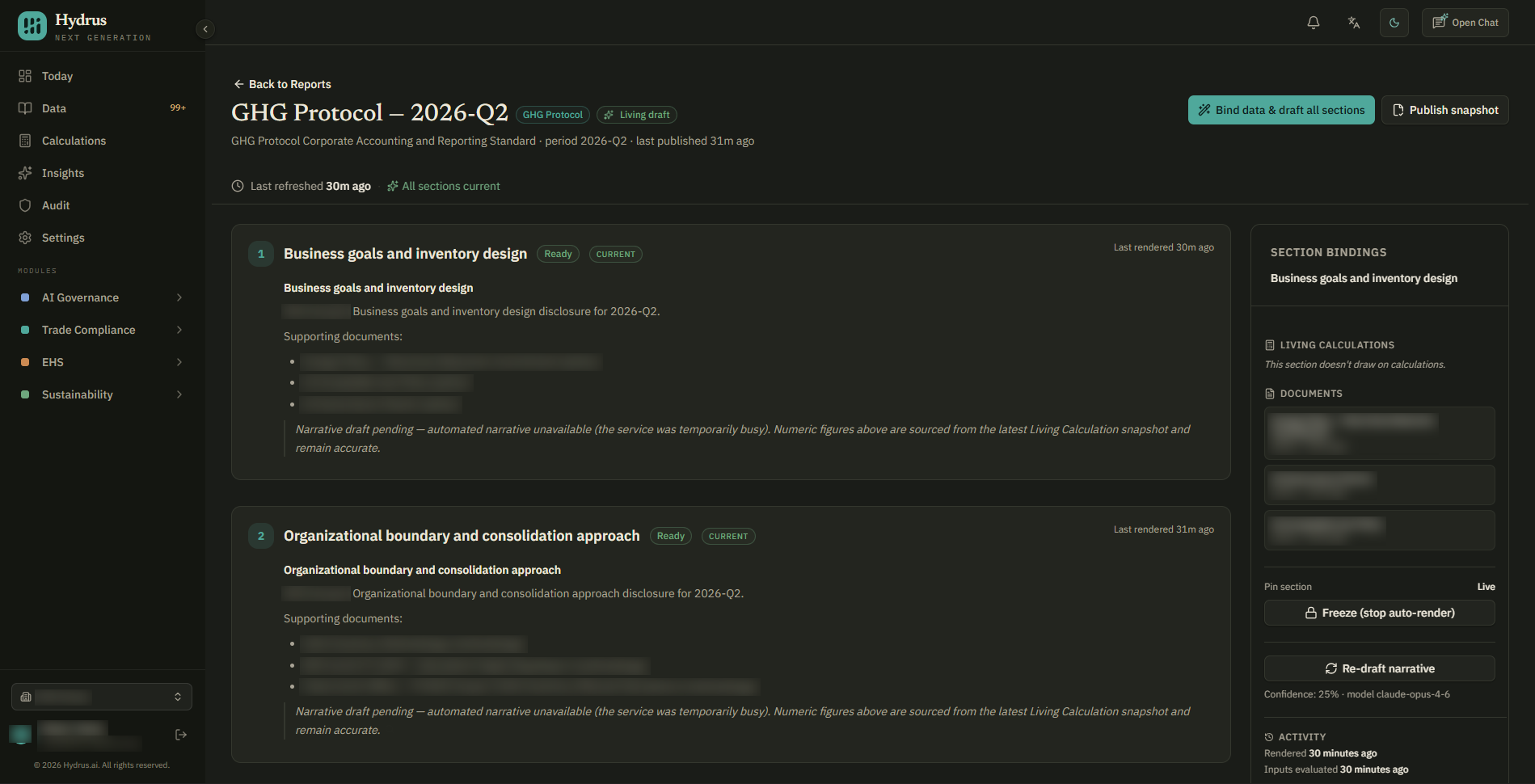
The earlier snapshot remains available as the previous version.
When Hydrus creates a candidate
Hydrus creates a candidate when someone makes one of these changes for a finalized period:
- Creates a new calculation.
- Edits or deletes a calculation that feeds the period.
- Applies an emission factor update through Hydrus AI.
- Corrects source data through Hydrus AI.
There is no minimum change required, so even a small change creates a candidate.
Some changes show a message with a review button that opens the candidate. Others add a candidate without a message. Calculation cards show how many candidates are waiting for review.
No candidate is created for a period that has not been finalized or has been reopened.
Keep track of pending changes
Hydrus does not send notifications when a candidate is created or submitted for approval. Check Restatements as part of your checks when finishing a reporting period.
Removing confirmation from a confirmed data source cancels its open candidates. Restatements in Pending approval stay there. An Admin must reject any that should no longer proceed.
The audit trail records submissions, approvals, rejections, and cancellations.
Who can use Restatements
| Role | Access |
|---|---|
| Admin | View restatements, write reasons, submit, approve, and reject. |
| Editor | View restatements, write reasons, and submit. |
| Auditor | View restatements. |
| Data Owner or Viewer | See restatement banners on reports they can open. No access to the Restatements tab. |