Hydrus turns reviewed sustainability calculations and supporting documents into framework reports.
A living draft stays connected to its source data and can change as that data changes. A filed snapshot is a locked copy of the draft at a specific point in time. Use the draft while reviewing the report; file a snapshot when you need a fixed version for a submission, audit package, or internal record.
Find your reports
- Open the Insights page.
- Select the Reports tab.
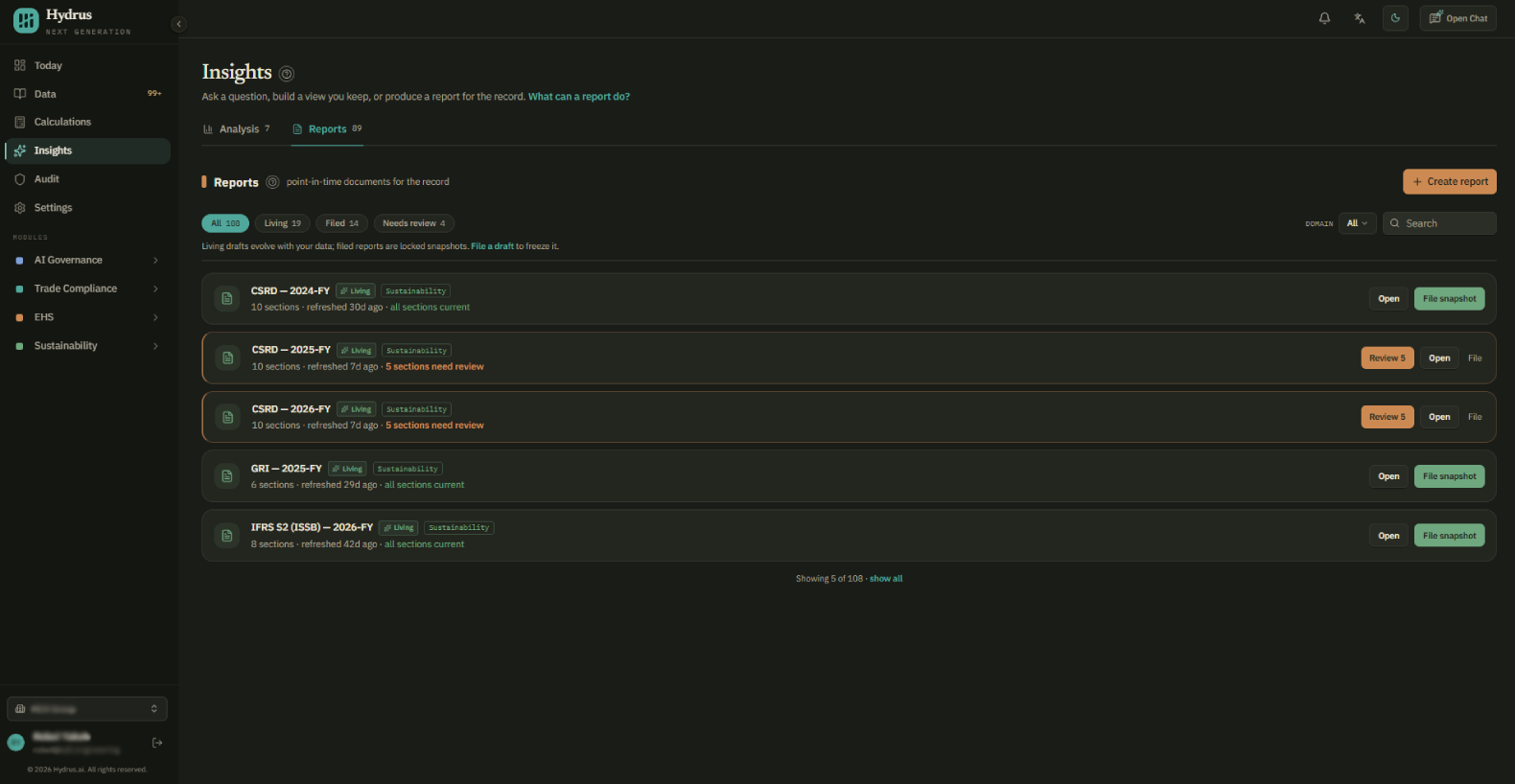
The list shows living drafts first and filed reports below. Use all, living, filed, or needs review to filter the list. Search by report name. If your organization uses more than one module, use domain to narrow the results.
Living drafts show their section count, last refresh time, and sections that need review. Filed reports show their filing date and page count.
Create a framework report
- Select create report.
- Choose framework response.
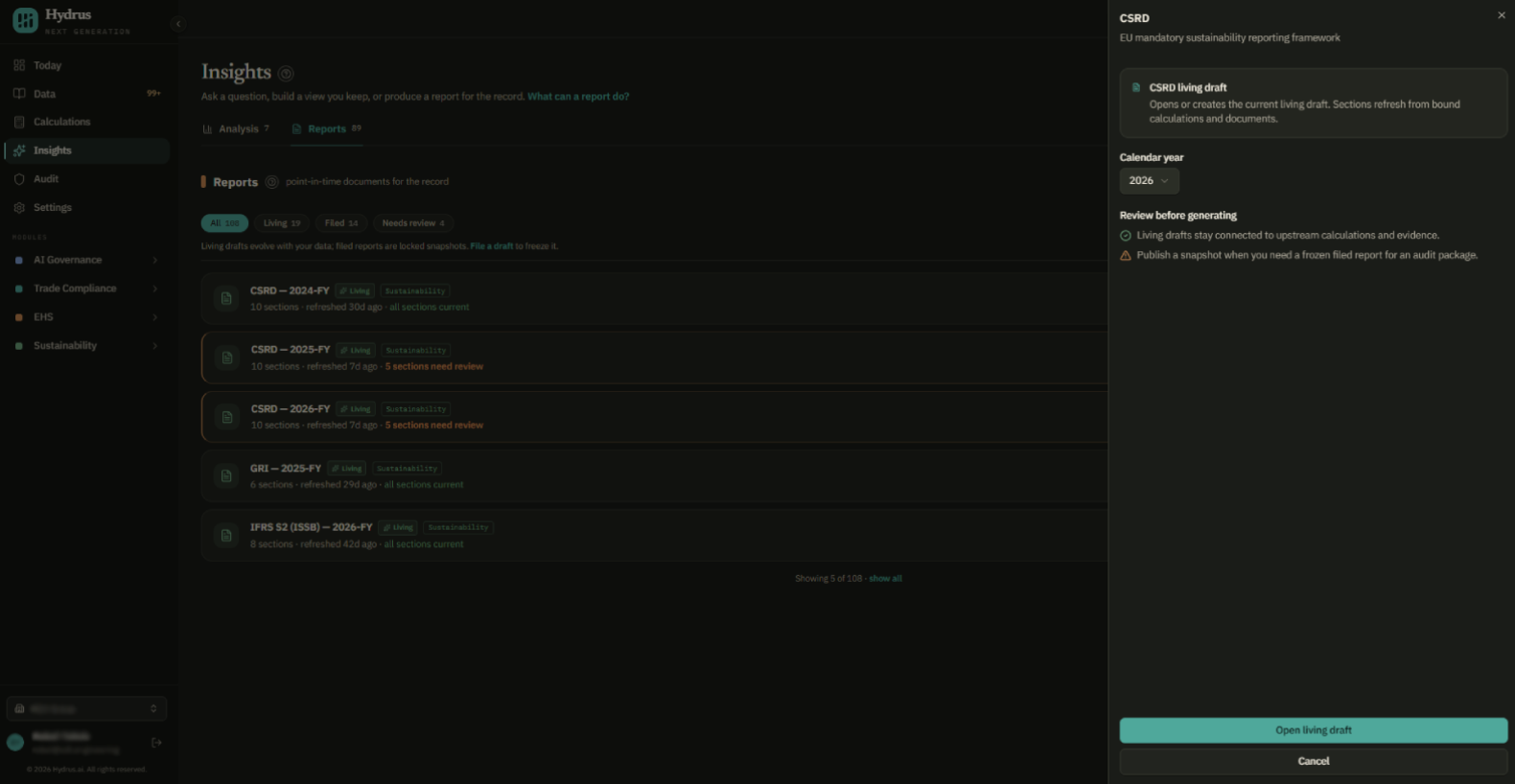
- Select the framework and calendar year.
- If you choose SASB, select the industry. Hydrus saves that choice to your organization profile.
- Check the framework and year, then select open living draft.
If a draft already exists for that framework and year, Hydrus opens it. Otherwise, Hydrus creates a draft and builds its sections from the available data.
You can also type what you need into the box at the top of the create report window, such as "Open our 2025 CDP climate change report." When your request names a supported framework, Hydrus opens that framework's report. You still choose the calendar year in the next step.
This workflow supports CSRD, GRI, CDP, TCFD, GHG Protocol, IFRS S1, IFRS S2, SBTi, and SASB.
Check the calculations behind the draft
The draft uses calculations for the selected year in this order:
- The calculation for that reporting period, when one exists.
- The most recent calculation from the same year, when no reporting-period calculation exists.
It does not use a calculation from another year. If the selected year has no data, affected sections show that the data is missing.
A draft can use a calculation that has not been finalized. Review and finalize the calculation before filing so the snapshot contains figures your team has approved. See reviewing an emissions calculation.
Review the living draft
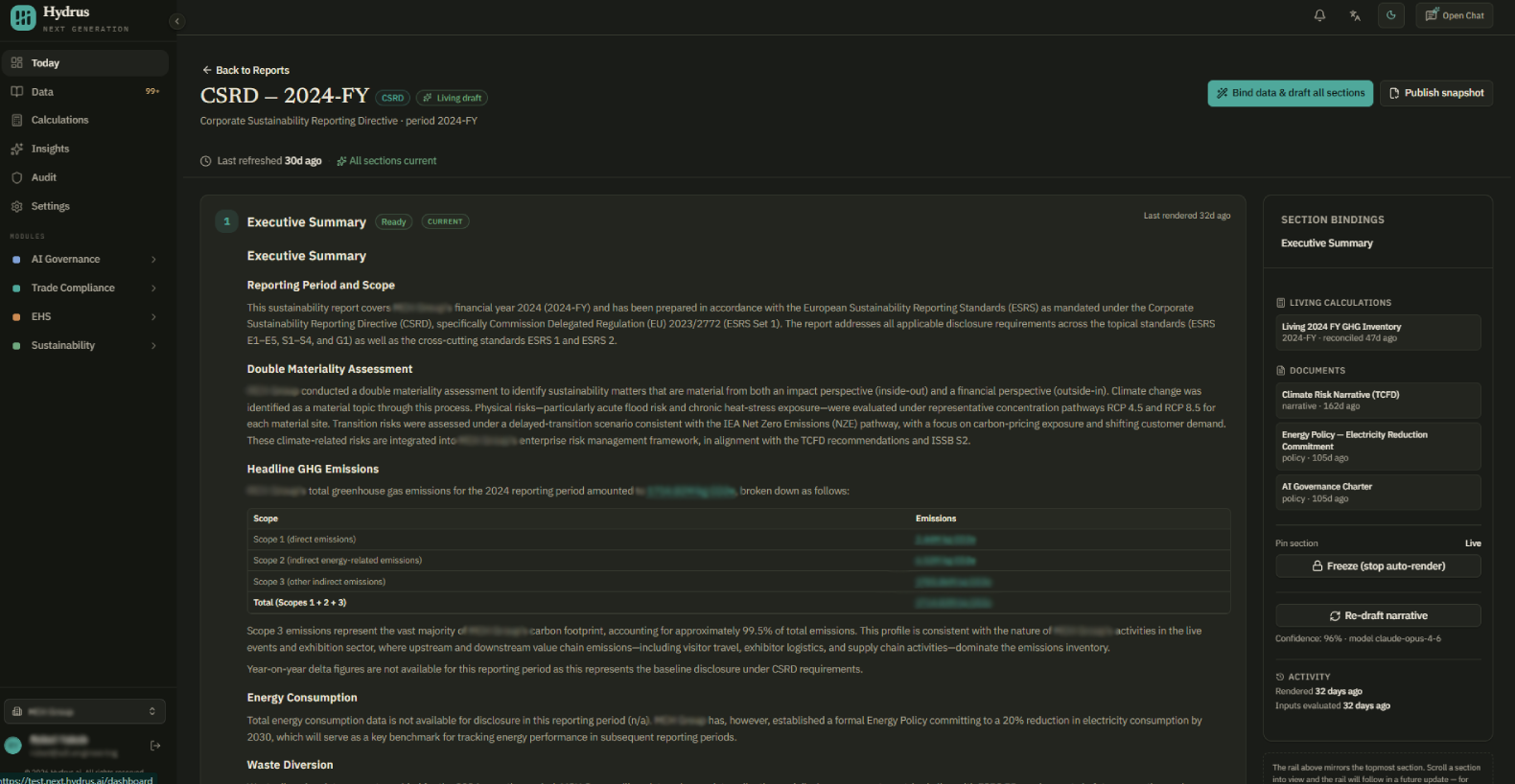
Each section has two labels beside its title:
| Label | Values | What it tells you |
|---|---|---|
| Readiness | ready, partial, missing data, not applicable | Whether the section has the inputs it needs. A missing-data section lists the inputs it is waiting for. |
| Wording | current, needs review, frozen | Whether the wording reflects the current sources and whether automatic rewriting is paused. |
Use the refresh bar at the top of the draft to check when it was last refreshed and how many sections need review. If something changed since your last visit, select show changes to see what caused the update and go to the affected section.
By default, Hydrus redrafts a section when a figure it uses changes by at least 5%. Depending on your organization's settings, it may update the wording and mark the section for review, or only mark it for review. Check those settings before relying on this behavior.
The Section bindings panel shows the calculations and documents behind each section. It also links to the Data workspace. You can:
- Select re-draft narrative to write the section again from its current sources.
- Select freeze (stop auto-render) to stop automatic wording changes. Updates wait in a queue until you unfreeze the section.
Freeze a section after its wording is approved when later source changes should not rewrite it automatically.
File a locked snapshot
File a snapshot after you have reviewed the draft and are ready to create a fixed record.
- Review the sections, source bindings, calculation status, and missing inputs.
- Select publish snapshot.
- Review the filing details and confirm.
Hydrus copies the current text of every section into a new filed report named after the draft and filing date. The filed report is locked. The living draft continues to update separately.
Each publication creates a new filed report, so earlier snapshots remain available. On the Reports tab, file snapshot on a draft opens the draft; publish the snapshot from inside the draft.
Export a filed report
- Open the filed report.
- Select download PDF to download a PDF with numbered sections and data references.
- If the report contains a table, select CSV or XLSX to download the table data.
- Select replay timeline to review how the reported figures changed over time. See tracing a reported number with the audit trail.
If sections are still waiting for data, a banner shows how many and links to each gap. Resolve the gaps before sharing the report when complete sections are required.
Handle a restated figure
A supplier may send a corrected invoice after you file a report. If the correction changes a reported figure, review and approve the restatement before creating a new snapshot.
After approval:
- The filed report shows the approval date, approver, and restatement details.
- The living draft shows how many approved restatements affect it.
- If the latest snapshot predates the restatement, select re-export snapshot to create a new snapshot with the updated figures.
Review the supporting evidence before re-exporting.
Roles and access
Admins and Editors can create and archive reports. All roles can open and download filed reports. The replay timeline is available to Admin, Editor, and Auditor roles.
Check the filed report
Before sharing a filed report, confirm that:
- The framework and calendar year are correct.
- The report uses the intended calculations, and those calculations are finalized.
- Every section was reviewed after its latest update.
- The filing date and snapshot are clear.
- Approved restatements since the last snapshot have been reviewed and, when needed, re-exported.
The living draft is for ongoing review. The filed snapshot is the fixed version you can share with reviewers.