An emissions calculation combines activity data with emission factors to produce a reported total.
Before reporting the total, review the calculation to make sure the right records are included, outstanding issues have been addressed, and the emission factors are appropriate for the activity.
Hydrus highlights records that need attention during the calculation. These can include missing facility information, missing scope assignments, unmatched categories, or emission factor matches that need review.
Review these issues before finalizing the calculation.
Set the calculation boundary
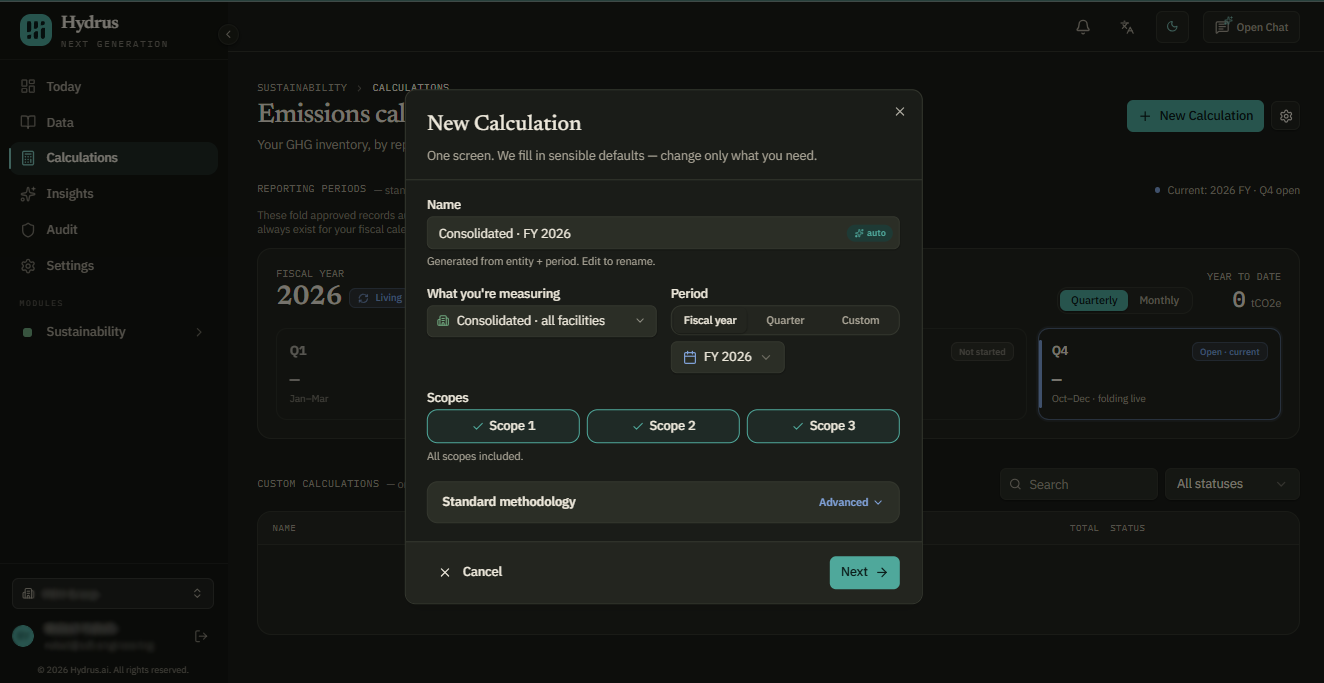
Start by selecting the new calculation button.
Choose what the calculation should include:
- Facilities: Select specific facilities, or leave the selection empty to include all facilities. A consolidated calculation also includes records that are not assigned to a facility.
- Period: Select a fiscal year, quarter, or custom date range. Only periods containing data are available.
- Scopes: Scope 1, 2, and 3 are selected by default. You can turn individual scopes off.
- Scope 2 basis: Hydrus calculates both location-based and market-based Scope 2. This setting determines which one is shown as the headline figure.
The next step shows the source files and data sheets that fall within the selected boundary. Uncheck any source that should not be included.
Before continuing, check:
- The listed files are the files you expect to use.
- Check whether any records were excluded because they were not filed into a data sheet.
A calculation only includes records that have been filed into a data sheet. A large excluded count may mean that data was uploaded but has not yet been organized.
Review emission factor matches
When Hydrus runs the calculation, it groups records with the same facility, category, subcategory, unit, year, and scope.
It then selects an emission factor for each group.
There are several types of matches:
- Best match: Hydrus identifies the factor that best fits the activity based on the available information, such as the activity, unit, region, year, and scope.
- AI: Several factors may fit the activity. Hydrus selects one, records why it selected it, and gives the match a confidence score.
- Previously matched: If the same inputs were matched before, Hydrus reuses the earlier decision. If the factor has since been updated, for example with new values for 2026, check that the earlier match still applies.
- Needs you: The match has low confidence and requires a person to review it.
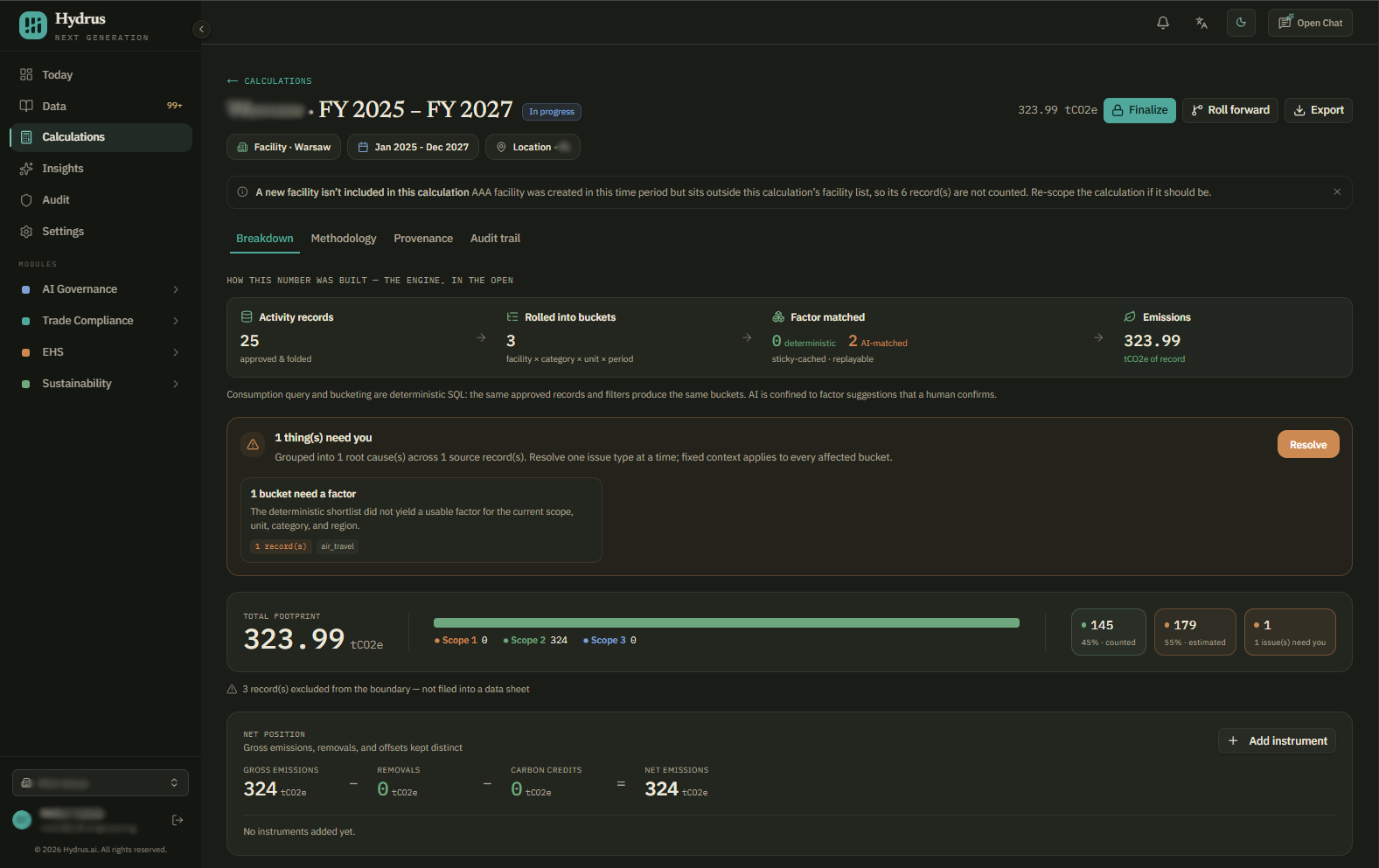
The Breakdown tab shows a summary of the calculation. It tells you how much of the total is counted, how much is estimated, and how many issues still need attention.
Use this summary to see whether the calculation needs further review.
When reviewing a factor match, remember that the best match label does not mean the factor is the only possible choice or an objectively perfect match. Review the factor's region, year, activity and unit, scope, and source before accepting it.
Resolve issues before reviewing the total
Some records cannot be included in the calculation until a decision is made.
Hydrus groups these into specific actions:
- Confirm region: The facility does not have a country or grid region.
- Assign scope: The records do not have a Scope 1, 2, or 3 classification.
- Map category: The data category does not match an emission factor category.
- Select factor: No suitable factor was found for the scope, unit, and region.
- Review matches: A factor match has low confidence.
Select the resolve button to work through these issues.
Hydrus presents each issue as a question, such as "Where is this electricity used?" or "Which scope do these count under?"
When possible, the answer is applied to all affected records. For example, assigning a region to a facility can resolve the region issue for all affected records at that facility.
Unresolved records are not included in the calculation total.
If an issue cannot be resolved yet, the skip for now button leaves the affected records out of the inventory and records a note in the audit trail.
Return to skipped issues before finalizing the calculation.
Review the calculation breakdown
After resolving the open issues, review the calculation results.
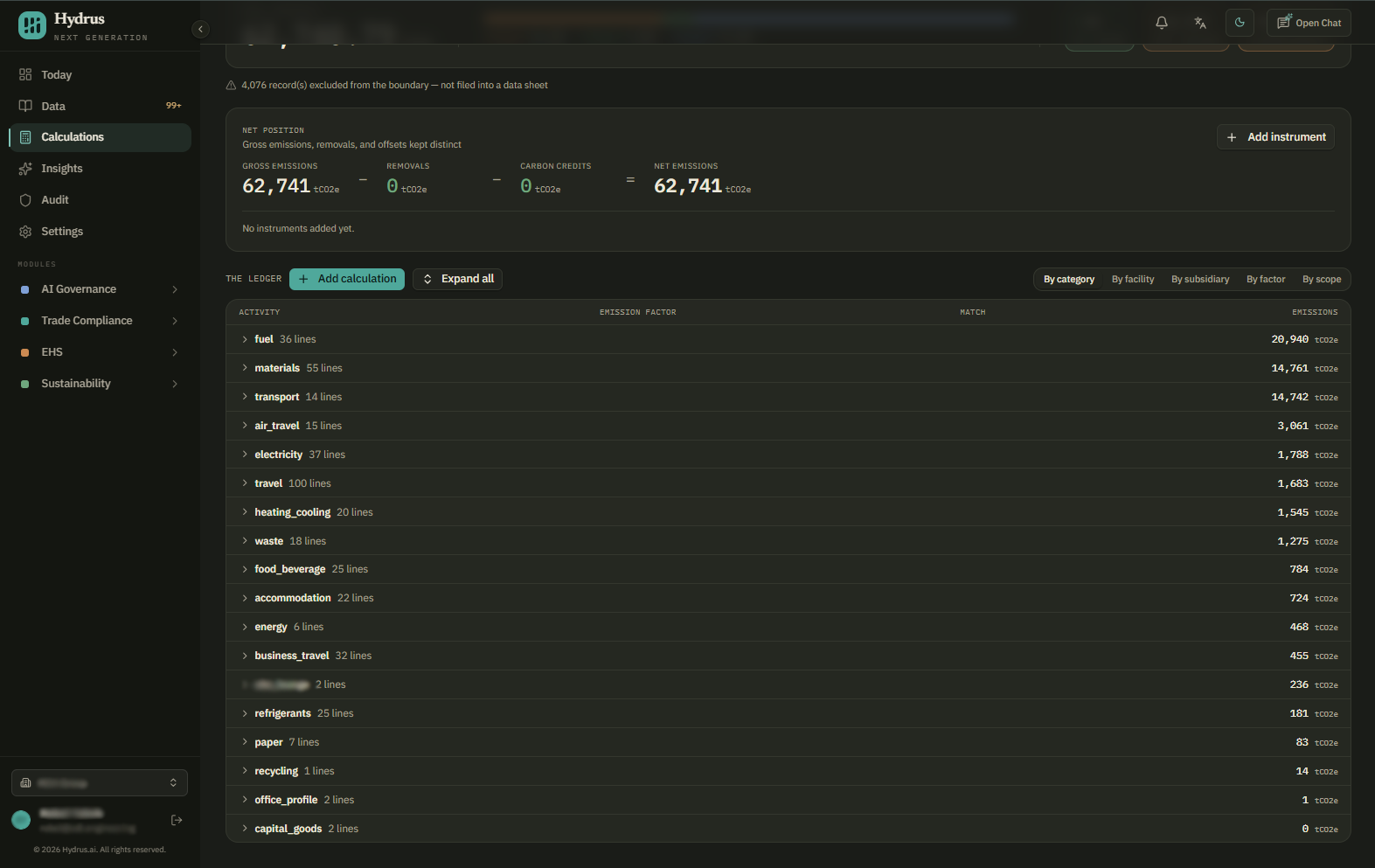
The ledger in the Breakdown tab can be grouped by:
- Category
- Facility
- Subsidiary
- Factor
- Scope
Start with the largest lines and any lines that look different from the previous period.
Open a line to see how its number was calculated.
The drill-down shows:
- Factor applied: The factor name, source, region, unit, and basis.
- Selection rationale: Why the factor was selected, how well it matches the activity, and which alternatives were considered.
- Source records: The records used to produce the line, the data sheet they belong to, and the original source file.
The drill-down also shows the total of the source records used for the line. This lets you check that records were not dropped or counted twice.
If a factor is not appropriate, select the change factor button to choose a more appropriate factor from the Emission Factor Library.
You can also approve or reject individual matches. Rejecting a match clears the previous decision so Hydrus does not automatically reuse it the next time the same activity is calculated.
When reviewing a factor match, check:
- Region
- Year
- Activity and unit
- Scope and boundary
- Source
For more detail, see the guide on choosing an emission factor.
Finalize the calculation
When the calculation has been reviewed, finalize it for reporting.
Hydrus handles reporting periods and custom calculations differently.
Reporting periods
Reporting periods exist for each month, quarter, and fiscal year in your fiscal calendar.
They update as new data arrives.
A reporting period can only be finalized when there is nothing outstanding. After it is finalized, later changes, such as new records or factor updates, become restatement candidates instead of changing the reported figure automatically.
Custom calculations
Custom calculations use a specific facility or date range.
They do not update automatically when new data arrives. If new data becomes available, Hydrus shows a new data available banner and offers to refresh the calculation.
A finalized custom calculation cannot be refreshed. It must be restated instead.
Reopening a finalized calculation
Reopening a finalized calculation requires a written reason.
Before reopening it, Hydrus shows which active reports use the calculation's totals. This lets you see what may be affected before making the change.
The Audit trail tab records the calculation history, including when it was:
- Created
- Refreshed
- Resolved
- Finalized
- Reopened
- Updated with factor overrides
What a reviewed calculation should show
Before a calculation is reported, you should be able to answer:
- Which records were included?
- Which records were excluded, and why?
- Which emission factors were used?
- Why were those factors selected?
- Who made the decisions that required review?
- When was the calculation finalized?
A calculation is ready for reporting when the included data, outstanding issues, factor selections, and final result have all been reviewed.
This gives reviewers a clear way to understand how the reported emissions total was produced.