Use the audit trail to see who changed the data behind a reported number, when they changed it, and what changed. Use a replay to see the number at an earlier point in time.
For example, if a reviewer asks why an emissions total changed after a draft was shared, you can find the changes and follow them one at a time.
Find the relevant changes
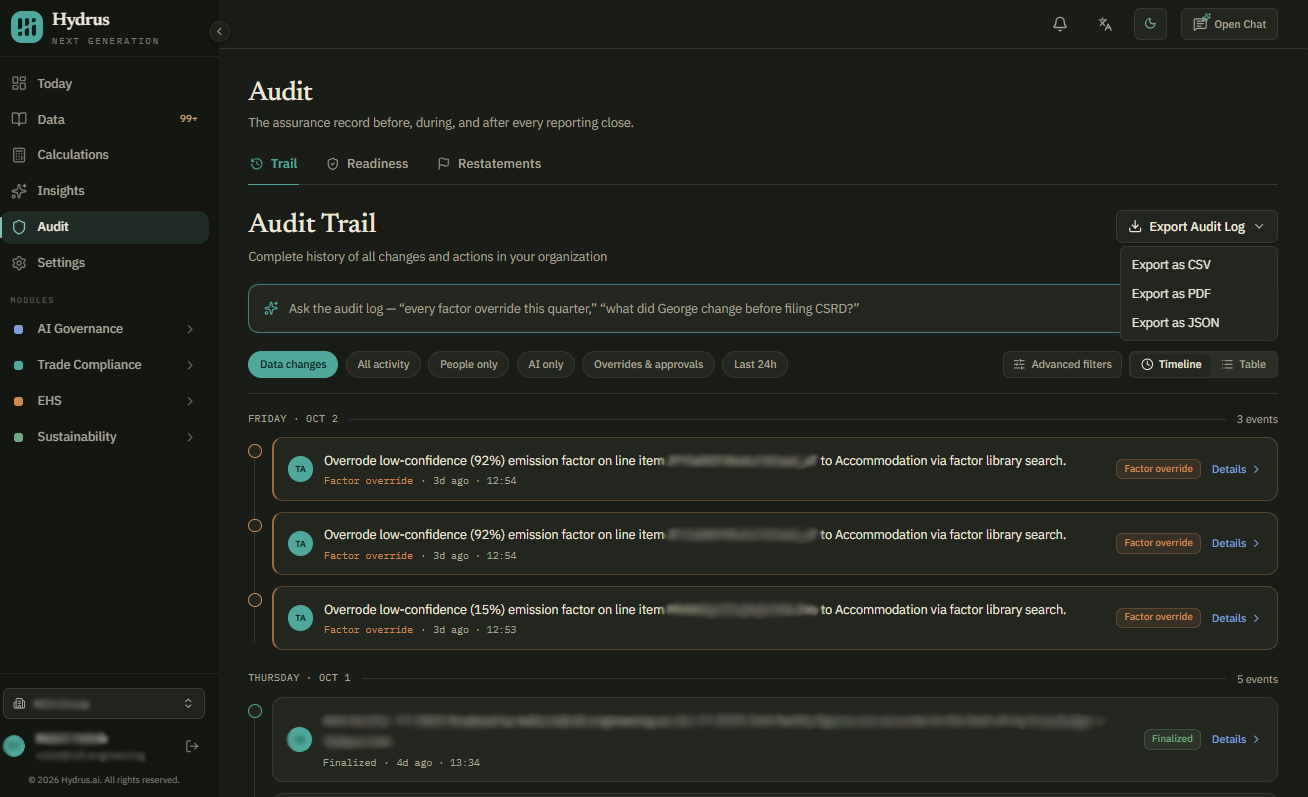
- Open the Audit page and select the Trail tab.
- Choose a quick filter that fits your question.
- Use the advanced filters button to narrow the results by date range, record type, person or AI, and action.
- Open the relevant events to review their details.
| Quick filter | What it shows |
|---|---|
| Data changes | Events that changed something; hides read-only activity. |
| People only | Actions performed by users. |
| AI only | Actions performed by Hydrus AI. |
| Overrides & approvals | Decisions such as emission factor overrides. |
| Last 24h | Recent activity. |
You can also enter a question such as "every factor override this quarter." Hydrus searches recent audit events for matching results.
Related events appear together in an audit chain, so you can follow a change and the actions that came after it.
Read an audit entry
Each entry shows who or what took the action, their role at the time, the action, the affected record, and the time it happened.
When available, it also shows the record before and after the change, highlights changed fields, and includes the reason. If the person's role changes later, the entry still shows the role they had when they took the action.
The trail covers these types of activity:
| Area | Examples |
|---|---|
| Data | Uploading, confirming, correcting, rejecting, reverting, and removing duplicates. |
| Calculations | Creating, recalculating, finalizing, reopening, changing emission factors, adding manual lines, and guided review. |
| Reports | Generating and exporting reports. |
| Facilities | Creating, updating, and deleting facilities. |
| Hydrus AI | Actions taken on behalf of users. |
Before closing a reporting period, use the overrides & approvals filter for that period. Check the reason for each override and the role of the person who made it.
See a number at an earlier date
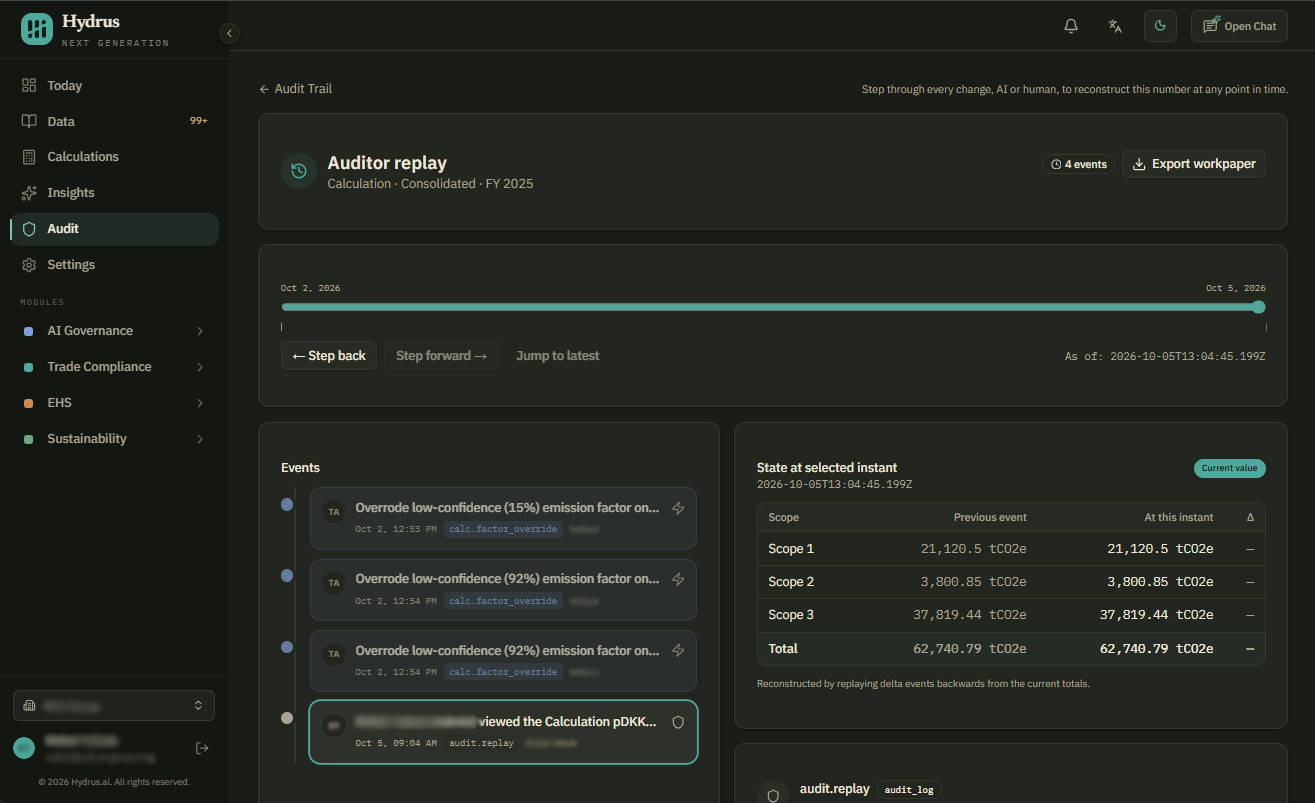
A replay lets you step through a record's history. For calculations, Hydrus rebuilds the earlier total using the changes made up to the selected point.
- Open the report and select the replay timeline button, or open the replay from the related calculation.
- Move the timeline slider to the date you want to review.
- Use the step back and step forward buttons to follow each change.
- Open an event's links to see the full audit entry or the record that changed.
For example, a reviewer may ask: "What was the Scope 2 total when we shared the March draft, and what changed afterward?" Move to the date the draft was shared, then step forward through the later changes. Check the reason for each change where one is available.
A replay is also available for reports, data sources, facilities, documents, emission factors, and individual records.
Opening a replay is recorded in the audit trail, so your team can see who opened the figure's history.
Export the records for a reviewer
Choose the export that fits what the reviewer needs:
| Export | How to get it | What it contains |
|---|---|---|
| Audit log | On the Trail tab, apply your filters and select the export audit log button. Choose CSV, PDF, or JSON. | The events matching your filters, including time, person or AI, role, action, affected record, details, and request identifiers. |
| Replay workpaper | In the replay view, select the export workpaper button. | A PDF showing the figure's history. |
| Replay history | In the replay view, export the history as JSON. | The history plus a verification code used to check whether the exported contents have changed. |
Apply filters before exporting the audit log. For example, select the reporting period and the overrides & approvals filter to give a reviewer the decisions relevant to that period.
Give a reviewer access
Admins, Editors, and Auditors can access the Audit page.
The Auditor role lets a reviewer read the audit record without changing data, calculations, or reports. You can give an assurance provider this access so they can follow their questions directly in Hydrus.
Check that you can explain the change
After reviewing the trail and the replay, you should be able to identify:
- The number at the date being reviewed.
- Changes to the source data, emission factors, or calculation.
- Who made each change and their role at the time.
- The reason for each change, where it was recorded.
If a reason is missing, the audit entry alone may not explain why the change was made. Follow up with the person responsible.