Use the Analysis tab in Hydrus Insights to ask questions about your data, check what is missing for a reporting framework, compare your company with peers, or estimate the effect of an emissions reduction measure.
You can save results, charts, and key performance indicators (KPIs)—the numbers you want to track. Analysis results help you explore your data. Use finalized calculations and reports for numbers you plan to publish.
Open the Analysis tab
- Select Insights in the sidebar.
- Open the Analysis tab. It opens on Saved views.
The question box is at the top. Your saved results, charts, and KPIs appear as cards below it.
Use the charts, KPIs, scenarios, peer, and gaps filters to narrow the list. Use search saved views to find a card by its title.
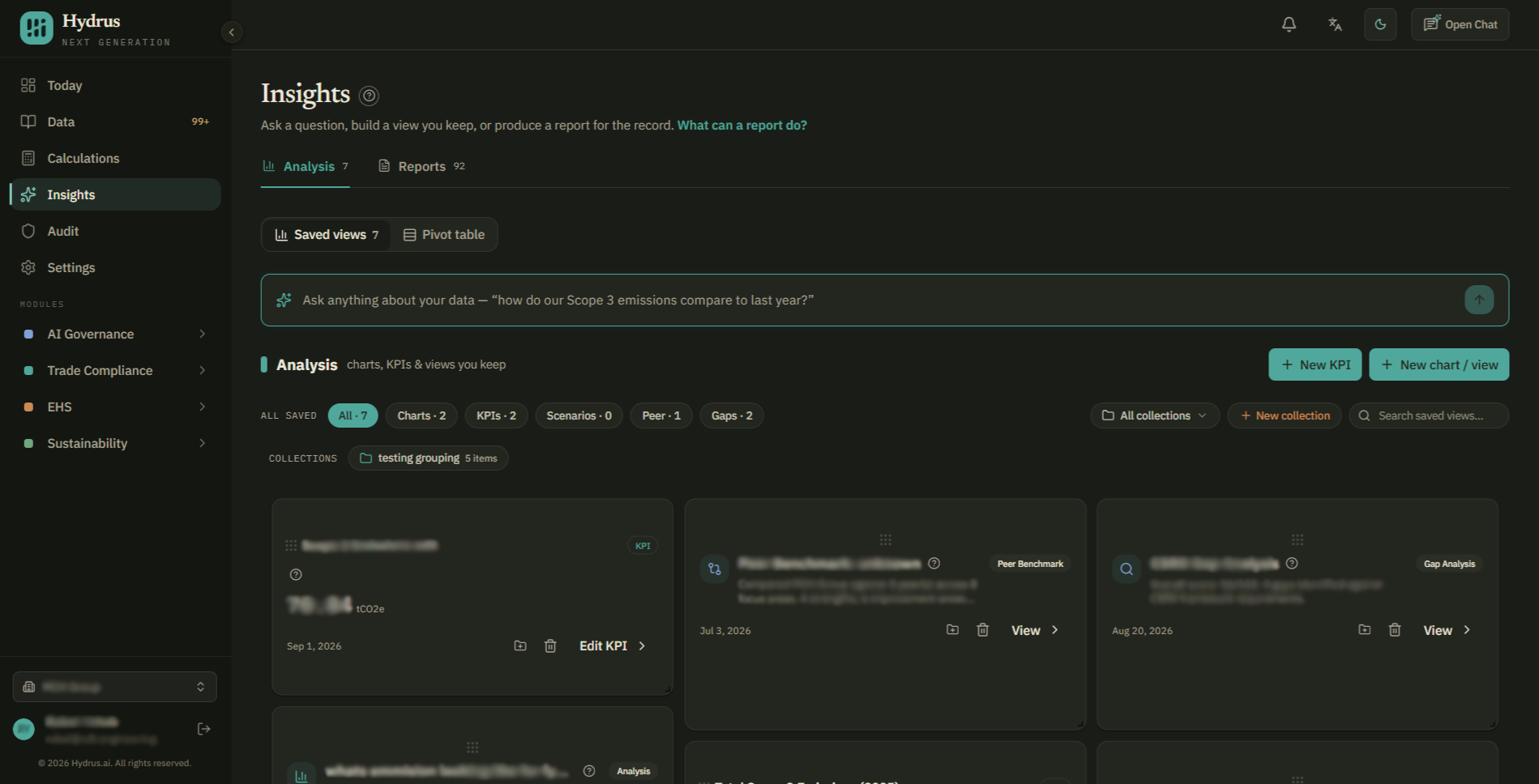
The Pivot table view next to Saved views lets you group your calculation data in a table and export it as CSV, a file you can open in a spreadsheet.
Ask a question
- Type your question in the box at the top. For example: “How do our Scope 3 emissions compare to last year?”
- Select ask.
- Read the summary, key findings, and charts below the question.
- To keep the result, select save analysis. It appears as a card on your board.
Quick answers are only saved when you select save analysis.
You can ask another question in the box under the answer. Hydrus uses your first question to help answer the follow-up. To see how a chart's numbers were selected and calculated, select view underlying query on the chart.
Set up an analysis
- Select new chart / view.
- Use the Ask tab to describe what you want, or open the Build tab to choose the settings yourself.
- On the Build tab, choose an analysis type and fill in its settings.
| Type | Use it to | Settings to choose |
|---|---|---|
| Chart or Query | Compare data over time or by group. | Data source, grouping field, value, and how to add it up. For a chart, choose the chart type too. |
| Gap | Check what is missing for a reporting framework. | Framework, such as CSRD or TCFD, and evidence to check. |
| Risk | Review climate risks at your sites. | Framework and facilities. |
| Peer | Compare your company with similar companies. | Industry, peers, framework, and topics to compare. |
| Scenario | Estimate the effect of an emissions reduction measure. | Data source, description of the measure, and facilities. |
A framework is the set of reporting requirements you want to check against. A scenario estimates what could change if you take a particular action, such as installing rooftop solar.
Choose peers for a comparison
- Select identify peers. Hydrus suggests companies based on your organization profile and explains each suggestion.
- Tick the companies you want to include, or enter your own.
To compare with an industry average instead of named companies, choose use sector average.
Check the plan and run it
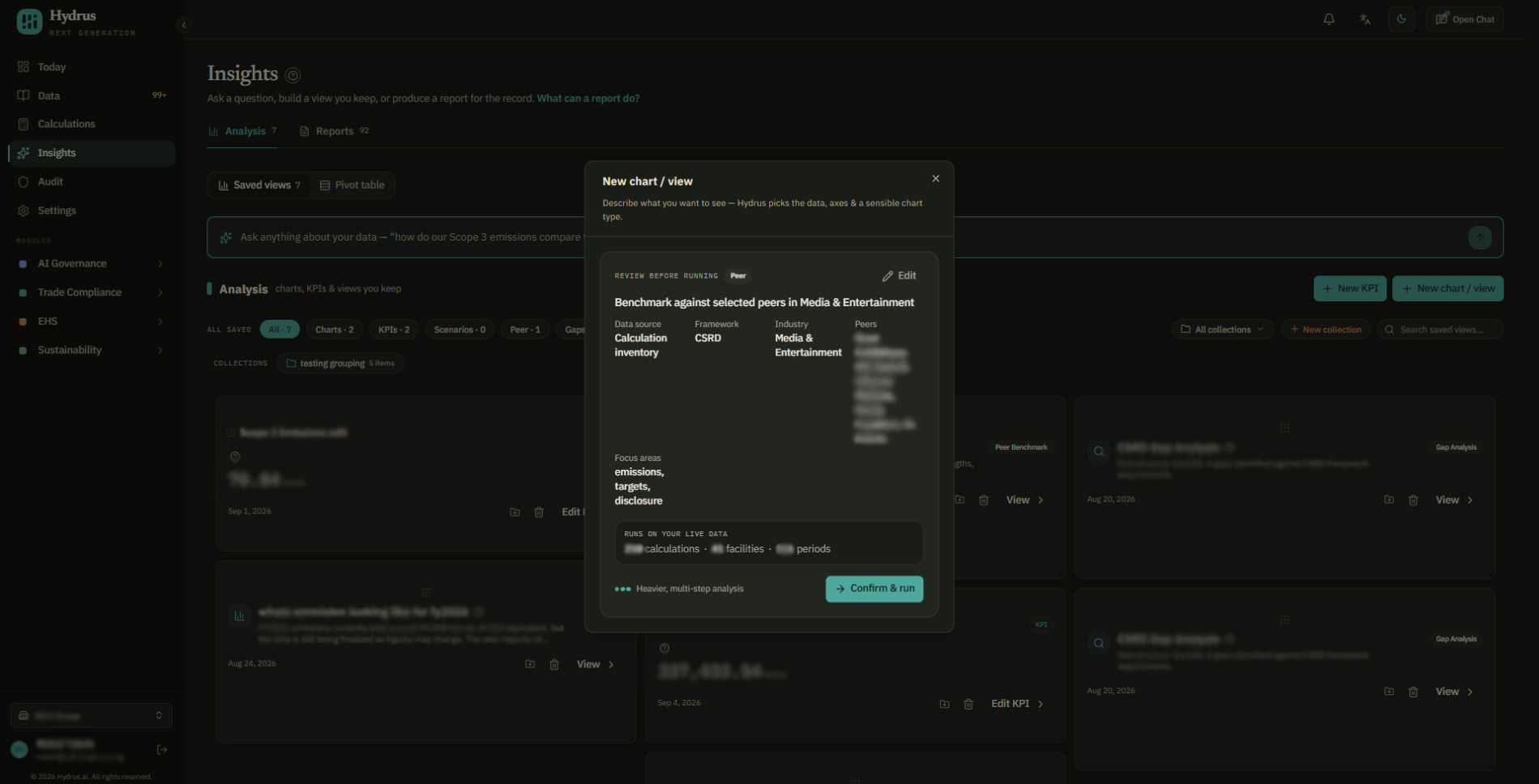
- Select review plan.
- Check the summary, including the calculations, facilities, and periods Hydrus will use.
- If the plan lists missing information, fill it in on the card. For example, it may ask you to choose a framework.
- Select confirm & run when the plan is correct. To change it first, select edit.
Hydrus then runs the analysis. If you used the Ask tab, you review the plan in the same way so you can check how Hydrus understood your request.
Open and check the results
Gap, risk, peer, and scenario results save to your board automatically. Select view on a card to open the details.
| Result | What to check |
|---|---|
| Gap | Which requirements are complete, what is missing, and which gaps to address first. |
| Risk | Each risk's type, likelihood, impact, and suggested action to reduce it. |
| Peer | Company profiles, the metric comparison and your rank, the maturity chart, and recommendations. |
| Scenario | Estimated annual emissions reduction, investment, payback period, and the assumptions used. |
For example, a CSRD gap analysis can give you a list of missing evidence to discuss with the people responsible for the data. Check each item with them before treating it as a confirmed gap.
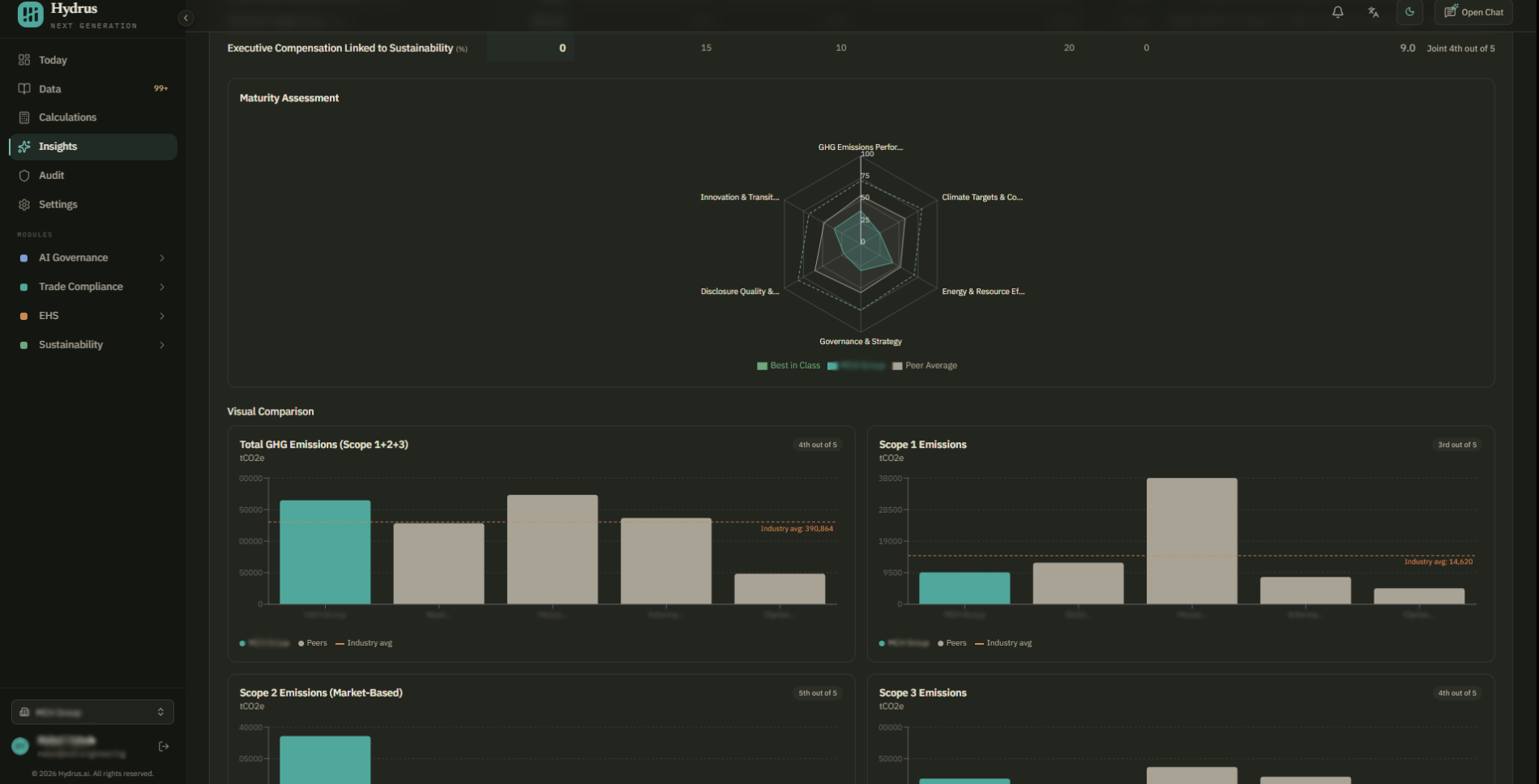
Use the question box at the bottom of the details to ask a follow-up.
Save a number you want to track
- Select new KPI.
- Describe the number you want, such as “Total Scope 2 emissions for 2026 across US facilities.”
- Select generate.
- Check the preview, then select save KPI.
The KPI appears on your board and under Your numbers on the Today page. If no data matches, the tile stays empty until matching data is available.
Group saved items in a collection
- Select new collection.
- Drag related cards into the collection.
To start a custom report using everything in a collection, open it and select add all to a report. You need the Admin or Editor role for this action. Follow the reports guide to finish the report.
Check estimates before using them
Peer and scenario results need extra checks:
- Peer figures are estimates based on public information. Check a company's published report before quoting its figures.
- Sector averages represent an industry. They are not figures for individual companies.
- Scenario figures are rough estimates for measures such as solar panels, LED lighting, or electric vehicles. Check the costs and assumptions before using them to support an investment decision.
Every result depends on the data already in Hydrus. Data sheets without records are not available as data sources. Missing data can leave part of your question unanswered.
Access, saving, and limits
Every role, including Viewer, can ask questions, run analyses, and save charts and KPIs. Your saved items and collections are private to you; teammates cannot see your board.
Deleting a card removes it immediately, with no confirmation or undo.
An analysis stops after about five minutes without progress. If your organization reaches its usage limit, Hydrus asks you to contact your administrator.
Hydrus records each analysis in the audit trail, including who requested it and their role. Saving and deleting board cards are not recorded.
Once you have checked a result, save the items you want to use again. Before publishing a number, trace it back to a finalized calculation.