A supplier is a company you buy goods or services from. When the list is long, grouping suppliers helps you focus on the ones you need to review or follow up with.
A segment is a saved group of suppliers. You set the rules once, and Hydrus works out who belongs. When a supplier's details change, their segments change too.
Rules won't cover every case, so you can also add or remove a single supplier. This is an override, or exception: a manual decision that takes priority over the rules. Each needs a reason so reviewers can understand why that supplier was treated differently.
For example, a reviewer may ask: "How are our main purchased goods suppliers responding this quarter?" With a segment in place, you can answer without rebuilding the list by hand.
Before you create a segment
The Directory is where you find each supplier's record and details. Segment rules use those details to decide who belongs.
A supplier tier describes where a supplier sits in your supply chain, from companies you buy from directly to suppliers further back in the chain.
Scope 3 covers emissions linked to activities outside your own operations, such as purchases and business travel. These still count toward your company's emissions total.
Check these fields before creating a segment:
- Tier: each supplier has the right tier.
- Scope 3 categories: each supplier has the categories that apply to them. Categories group emissions by activity, such as Purchased Goods & Services or Business Travel.
A supplier with no Scope 3 categories won't match a category rule. For help setting these up, see the Directory guide and the guide to supplier tiers and Scope 3.
Open Supplier segments
- Open the Data workspace.
- Select Directory, then Suppliers.
- Select the segments button at the top of the supplier list.
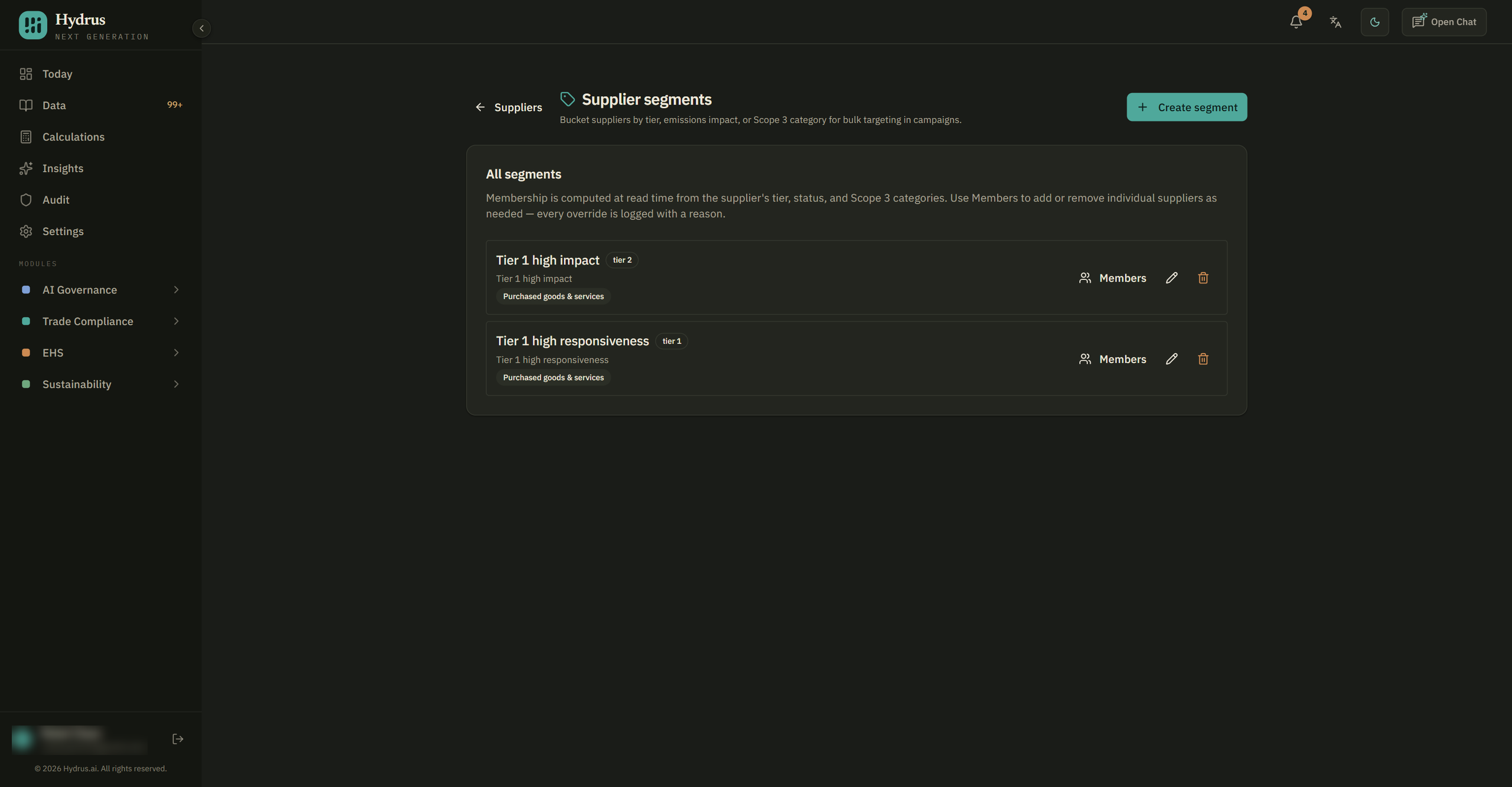
The Supplier segments page lists every segment with its name, description, tiers, and Scope 3 categories.
Create a segment
-
Select the create segment button.
-
Enter a name in the name field, such as "Tier 1 high-impact". The description field is optional.
-
Under Tiers, select the tier 1, tier 2, or tier 3 button. You can select more than one.
-
In the Scope 3 categories field, enter one or more categories, separated by commas. For example: "Purchased Goods & Services, Business Travel".
next.hydrus.ai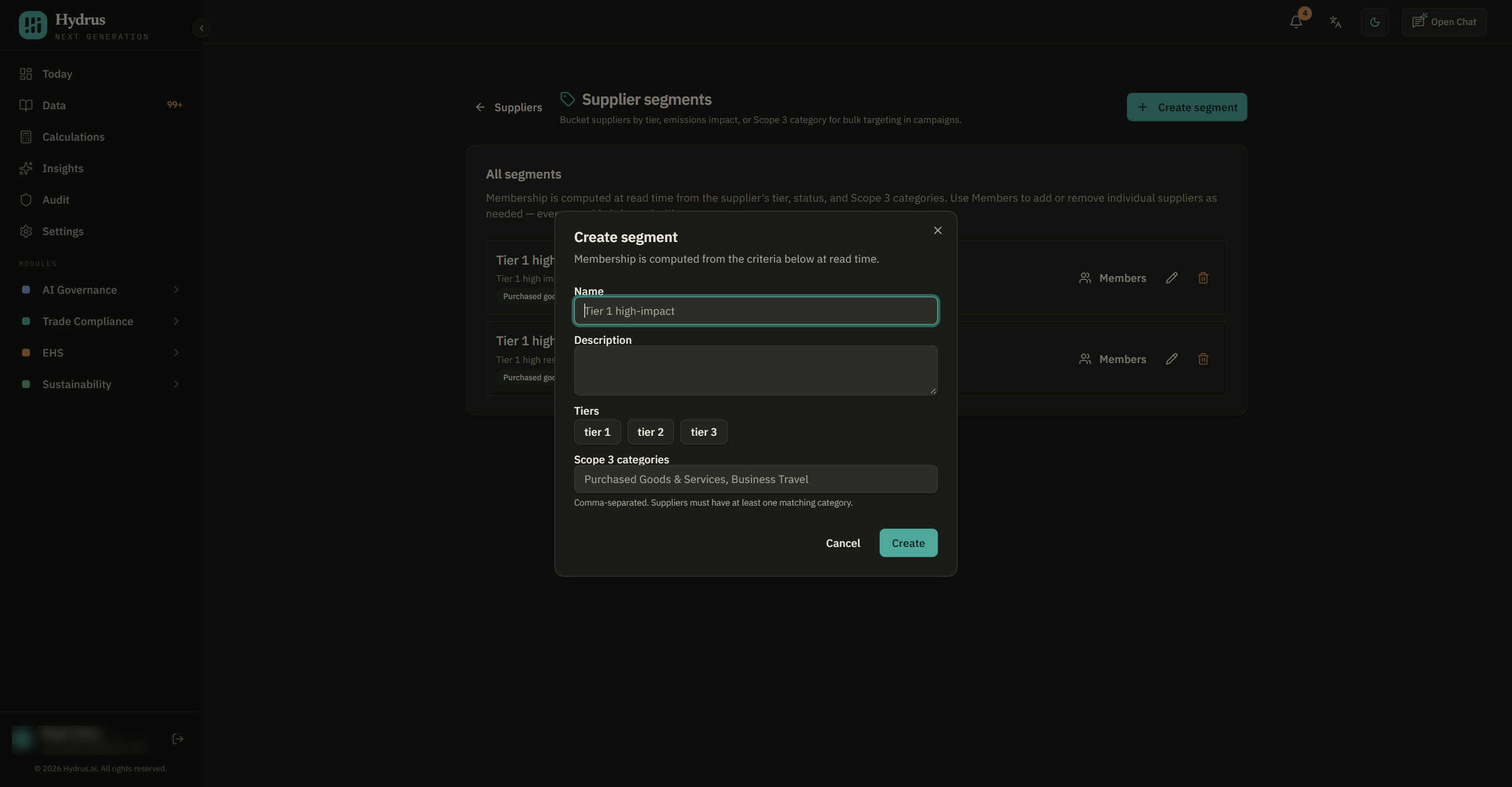
-
Select the create button.
The rules work like this:
| What you set | Who is included |
|---|---|
| More than one tier | Suppliers in any of those tiers. |
| More than one Scope 3 category | Suppliers with at least one of those categories. |
| Tiers and Scope 3 categories | Suppliers that match both. |
| No tiers or categories | Every supplier. |
Check two details when setting the rules.
Scope 3 categories must match the wording on the supplier's record. Capital letters don't matter, but "Purchased Goods" won't match "Purchased Goods & Services". If a segment comes back empty, check the spelling first.
A supplier's status isn't one of the rules you can set. Inactive suppliers can appear in a segment if they match. To leave one out, exclude them as described below.
Check who is in the segment
Select the members button on a segment. The window lists the current members, with each supplier's contact email and tier.
Each member has a label:
- The auto label means the supplier matches the segment's rules.
- The override label means someone added the supplier by hand.
Use the search box to find a supplier by name or email.
You don't need to refresh a segment. If you change a supplier's tier in the Directory, they join or leave the segment on their own unless an exception is in place.
Add or remove one supplier
Use an exception when one supplier needs different treatment from the rest of the group. You may want to track a strategic tier 2 partner alongside your tier 1 suppliers. Or a matching supplier may have closed the site you buy from.
Each exception needs a reason, which is recorded in the audit trail, the history of actions taken in Hydrus. Write it for someone who wasn't there, such as "Site closed in March; no further purchases expected."
To add a supplier:
-
Open the segment's members window.
-
Select the include supplier button.
next.hydrus.ai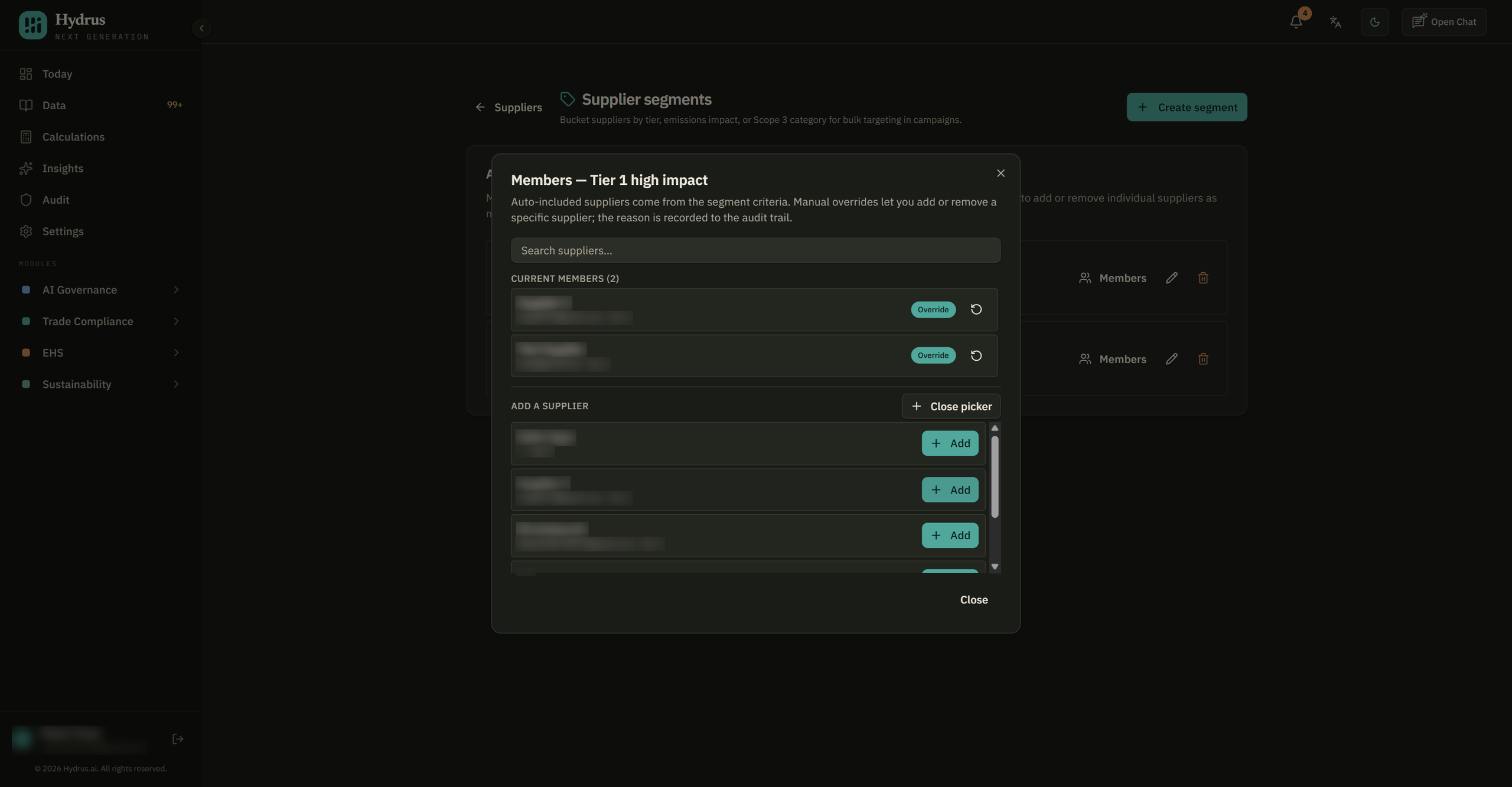
-
Find the supplier and select the add button.
-
Enter a reason, then select the add button.
To remove a supplier:
- Find them in the current members list.
- Select the exclude from this segment button, shown as a cross.
- Enter a reason, then select the remove button.
An exception stays in place even if the supplier's details change later. To undo one, select the clear override button next to a supplier you added, or the restore button next to a supplier you excluded. You'll find the restore button in the include supplier list. The supplier then follows the segment's rules again.
You can make the same changes from a supplier's own page. This page holds the details for one supplier. Its Segments section shows which segments they belong to, with an add to segment button for the others.
Use a segment in your supplier list
Back on the Suppliers list, use the segment filter to show one segment. You can combine it with the tier filter and the search box. Each row also shows the segments that supplier belongs to.
The data quality score summarizes how a supplier responds to requests. Response rate shows how often requests receive a reply.
To answer the reviewer's question from earlier:
- Filter the list to your purchased goods segment.
- Compare each supplier's data quality score, response rate, and last contact.
- Open any supplier who looks behind.
For what to do next, see how to review supplier data quality and follow up on requests.
Change or delete a segment
Select the edit button, shown as a pencil, to change a segment's name, description, or rules. Membership updates to match the new rules. Exceptions you've already made stay in place.
Select the delete button, shown as a bin, to remove a segment. Hydrus asks you to confirm. Deleting a segment also removes its exceptions, but it doesn't change the suppliers themselves.
Who can use this
Everyone in your organization can see segments and their members. Admins and Editors can create, edit, and delete segments, and can add or remove individual suppliers.
Creating, changing, and deleting a segment are recorded in the audit trail, along with every exception and its reason.
What your segments should show
With your segments in place, you should be able to answer:
- Which suppliers belong to this group, and why?
- Which suppliers were added or removed by hand?
- Who made each exception, and what was the reason?
- How are the suppliers in this group doing on data quality and responses?
If a member looks wrong, check their tier and Scope 3 categories in the Directory first. Fixing the supplier's details keeps the segment accurate without adding another exception.