A supplier is a company you buy goods or services from. Emissions linked to those purchases can count toward your company's emissions footprint, the total greenhouse gases associated with its activities.
These emissions are part of Scope 3, which includes emissions from your supply chain. Companies collect data from suppliers to help calculate them.
A supplier's page brings together their data requests, replies, scores, and history. A data request is a message asking the supplier for information, such as emissions data or records needed to calculate it.
Review this page before a reporting deadline to see what is missing. This gives you time to follow up, try another contact, or decide how to estimate missing data.
Everyone in your organization can view a supplier's page. Admins and Editors can refresh scores, send requests and reminders, and escalate suppliers.
Open the supplier's page
-
Open the Data workspace.
-
Select Directory, then Suppliers.
next.hydrus.ai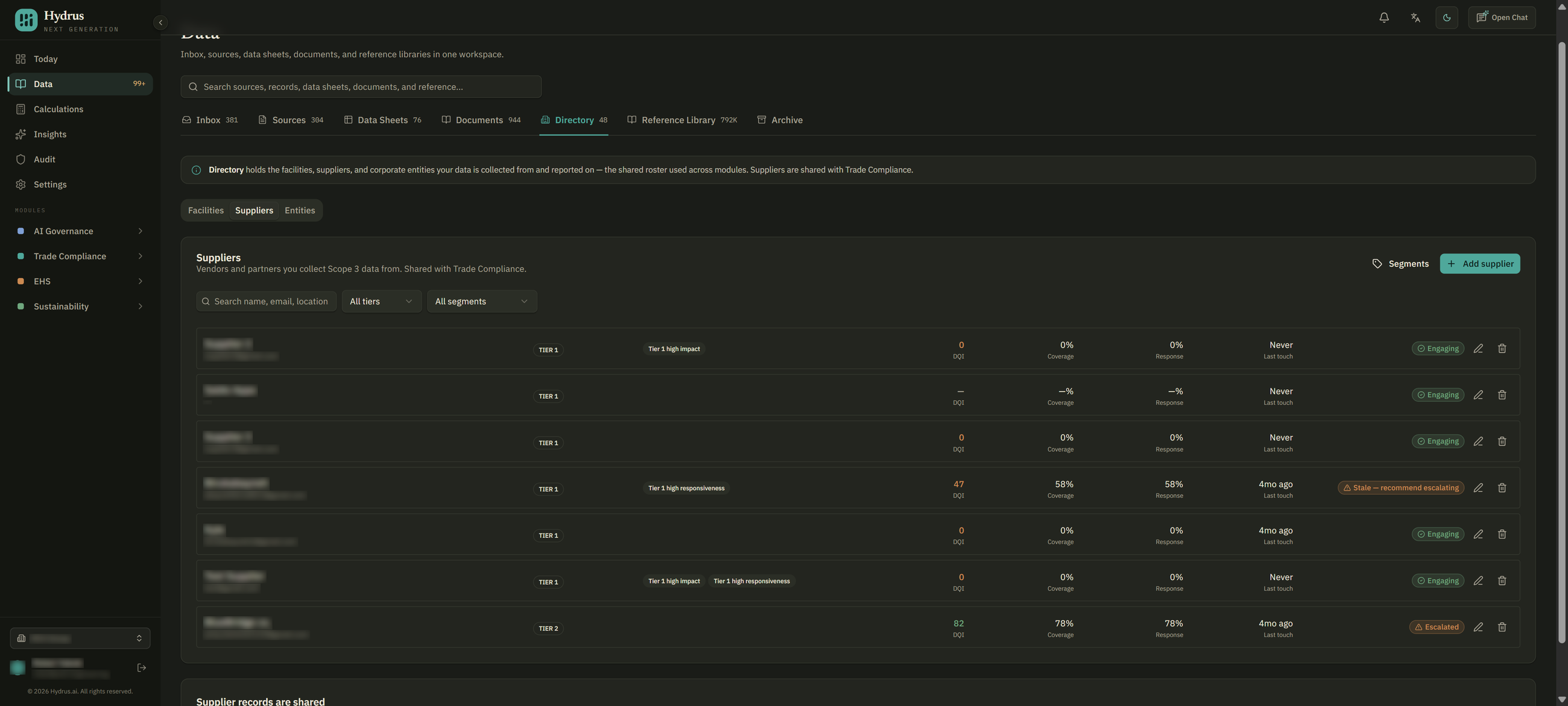
Before opening a supplier, you can compare suppliers in the list. Each row shows their data quality score, coverage, response rate, last contact, and status.
The status indicates whether they are engaging, have open requests, or have been escalated for your team's attention. It can also show “Stale — recommend escalating” when a supplier has not replied for some time.
Use the tier and segment filters to narrow the list to the suppliers you want to review.
-
Select the supplier's row to open their page.
Refresh the scores
Select recompute score at the top of the supplier's page before reviewing it. This updates the current quarter's scores using the latest requests and replies.
Scores update when a supplier replies by email or someone refreshes them manually. They do not update on a schedule. For a new supplier, select recompute score to calculate the first scores.
Understand the scores
The data quality score summarizes how a supplier responds to requests. The four cards at the top of the page show their overall score, how much they have answered, and what is still waiting:
| Card | What it shows |
|---|---|
| DQI | The data quality index: an overall score from 0 to 100 based on requests and replies. Scores of 75 or above appear in green. |
| Coverage | The percentage of requests sent in the last 90 days that the supplier answered or completed. |
| Response rate | The percentage of requests sent in the last 90 days that received any reply. |
| Open requests | Requests still waiting for an answer. |
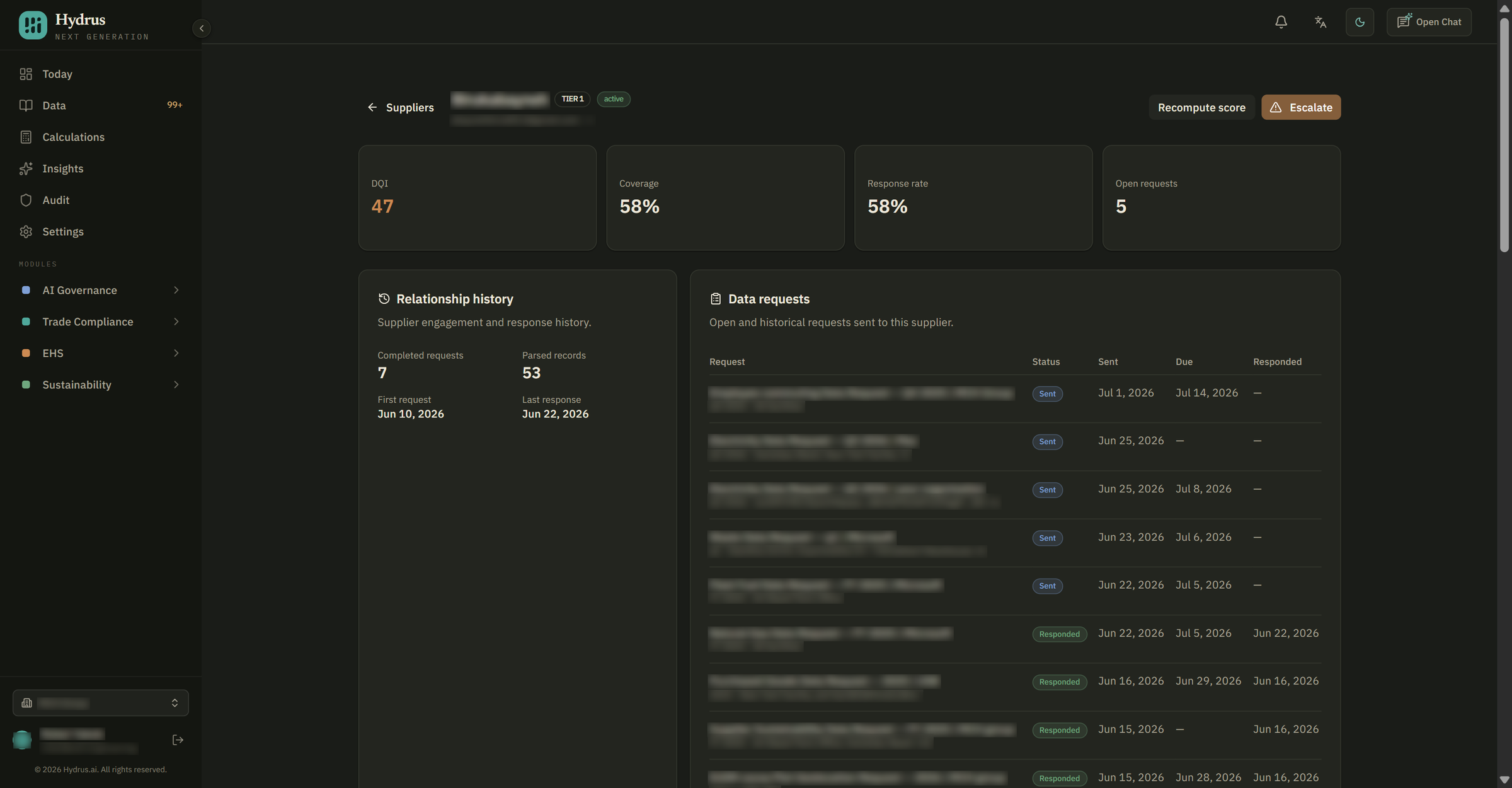
A reply counts toward response rate even if the request has not been answered or completed. Coverage tracks requests that were answered or completed.
The DQI is based on the supplier's requests and replies:
- Response rate makes up 40% of the score.
- Coverage makes up 40%.
- How recently the supplier replied makes up 20%.
A reply within the last two weeks earns the full 20% for how recently the supplier replied. That part of the score falls to zero after 90 days without a reply. Only requests sent in the last 90 days count toward coverage and response rate.
Use the score to assess whether a supplier is responding. You still need to review the data they sent before approving it.
The Quality trend chart shows DQI, coverage, and response rate by quarter. Check it to see whether the supplier's scores are rising or falling.
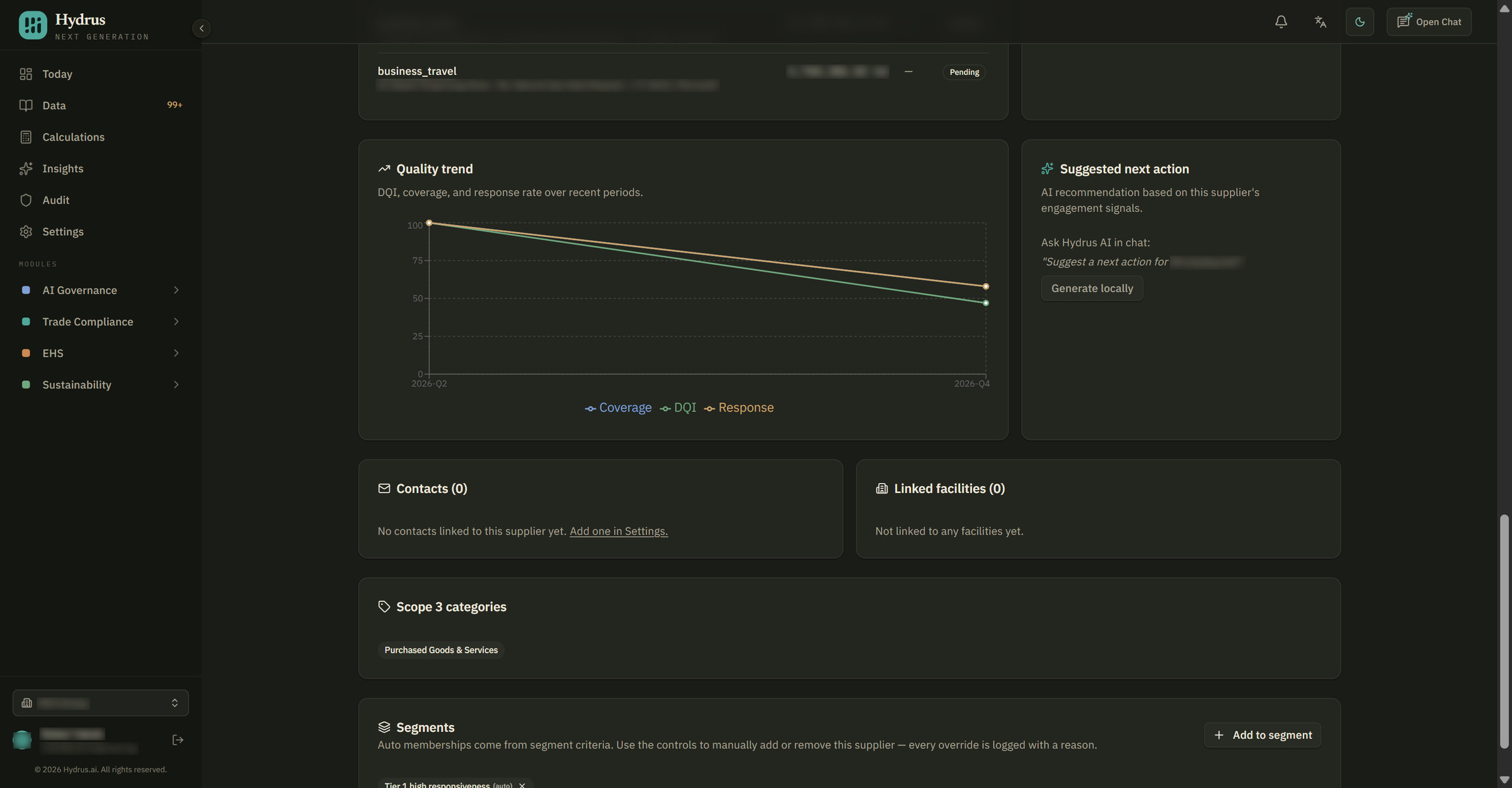
Check what is missing and what came back
In Data requests, check each request's status and the dates it was sent, was due, and received an answer.
Requests are matched to suppliers by email address. A request appears here only if you sent it to the supplier's primary contact or one of its linked contacts. If a request is missing, check that the recipient's email address is linked to the supplier.
In Parsed records, review the data received, including each record's value, emissions scope, and approval status. Records stay pending until someone approves them in the Inbox.
Find overdue requests
An escalation asks your team to step in when a supplier needs attention. Check the Escalation log for overdue requests and gaps in responses. It lists the newest events first:
| Event | What it means |
|---|---|
| Late submission | A request is past its due date and has no response. |
| Escalation recommended | The supplier has open requests and has not replied for at least 60 days. |
| Supplier escalated | Someone on your team escalated the supplier. |
A request can still show “Sent” in Data requests after its due date. Use the Escalation log to check whether it is late.
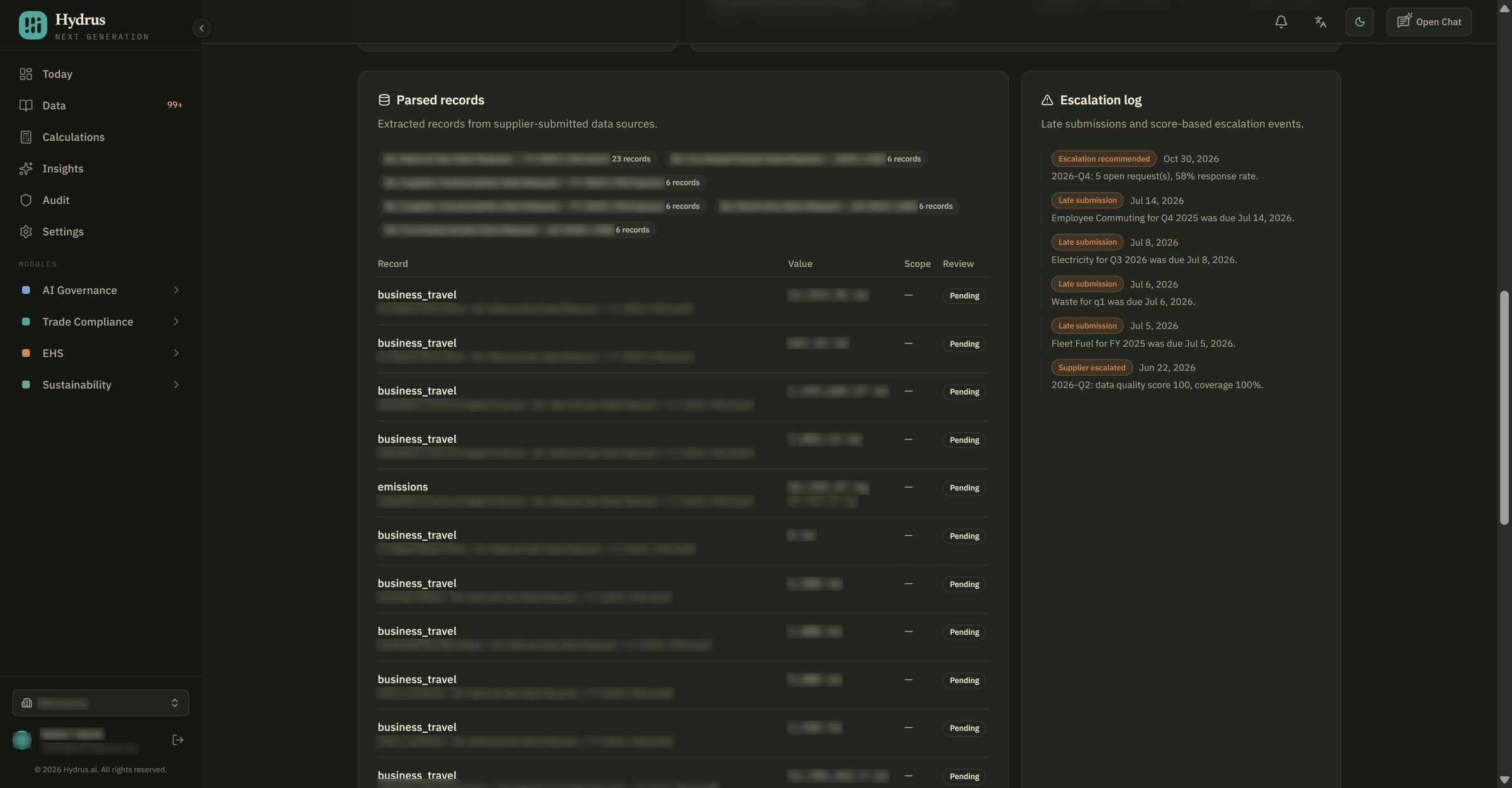
For example, one overdue request from a supplier who replied last month may need a reminder. Open requests and more than 60 days without a reply may need an escalation. Check the log and the trend chart together before deciding.
Send a reminder or follow-up
A reminder or follow-up contacts the supplier to ask for a reply. Send these messages from the Inbox in the Data workspace.
- Open the Inbox and find the request.
- Select view thread.
- Select send reminder for an overdue request, or send follow-up if you are still waiting for a reply.
- Send it now or schedule it for later. You can also choose to cancel the message automatically if the supplier replies first.
If the supplier has another contact, try that person. Manage contacts in Settings under People & access.
You can also ask Hydrus AI for advice. For example: “Suggest a next action for Acme Packaging.” It uses the supplier's response rate, coverage, and time since their last reply to suggest a follow-up, another contact, an escalation, or a change to how you estimate missing data.
Escalate the supplier
An escalation alerts your team that the supplier needs attention. It sends an in-app notification to Admins and Editors; it does not email the supplier.
- Check that the supplier's score has been calculated at least once. If needed, select recompute score first.
- Select escalate at the top of the supplier's page.
Hydrus marks the supplier as escalated for the current quarter and records the action in the audit trail, the history of actions taken in Hydrus.
The supplier page has no field for an escalation reason. To record a reason, escalate through Hydrus AI in chat and include the explanation there.
You cannot undo an escalation. Each quarter starts with a fresh score, so escalate again in the new quarter if the supplier still needs attention.
Who can take action
Admins and Editors can recompute scores, escalate suppliers, send requests and reminders, and edit or remove suppliers.
Other roles can read scores, requests, and history. They may still see recompute score and escalate, but selecting either button returns an error because those actions require an Admin or Editor role.