Use the Targets page to set how much you want to reduce emissions and by when. Each target has a baseline: the starting year and emissions amount used to measure the reduction.
Hydrus suggests targets using your emissions calculations. You can accept a suggestion or adjust its values. To change a saved target, replace it. Hydrus keeps the old target in your history.
Before you start
You need at least one emissions calculation for Hydrus to suggest targets. If you see No inventory yet, select go to inbox to upload data first.
Hydrus uses a finalized calculation for its suggestions when one is available. Otherwise, it uses the most recent calculation, even if it is still a draft.
Before setting a target you plan to publish, review and finalize the base year calculation.
Review the suggested targets
- Under Sustainability in the sidebar, open Targets.
- If there are no active targets, find Hydrus drafted 3 starting paths.
- Check the baseline year and emissions amount above the cards. Select explain this baseline to ask Hydrus chat where the figure came from.
- Review the reduction percentage, target year, and remaining emissions on each card. Open why this path? for a short explanation.
The three options are:
| Path | What the card offers |
|---|---|
| SBTi 1.5°C path | The recommended option, with a larger reduction than the 2°C path. |
| SBTi 2°C path | A smaller reduction than the 1.5°C path. |
| Moonshot | A more ambitious option that goes beyond the 1.5°C path. |
All three suggestions cover Scope 1 and Scope 2, use an absolute emissions target in tonnes, and have a target year of 2030. The suggested percentages depend on the industry in your organization's profile.
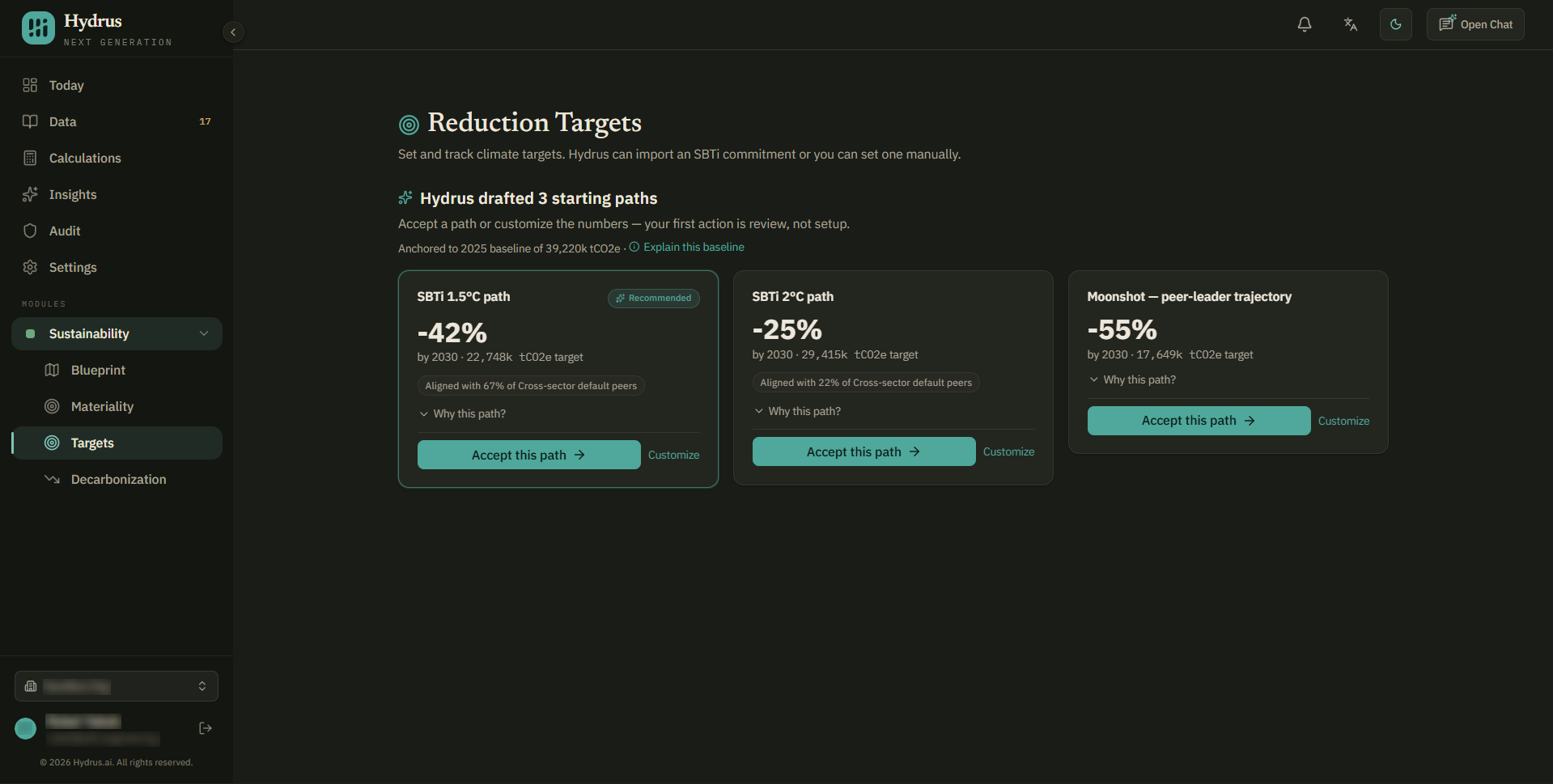
Accepting a path does not submit your target to the Science Based Targets initiative (SBTi) or mean that SBTi has validated it.
Accept or customize a target
Before accepting, check the scope coverage and validation status:
- An accepted SBTi path is saved as committed. If your organization has not made a public commitment, select customize and change the status to not validated.
- Suggested paths cover Scope 1 and Scope 2. If your target also covers Scope 3, customize the scope coverage and baseline emissions so they match.
If the suggested values fit, select accept this path. Hydrus saves the target with the AI-accepted label and opens the Decarbonization Planner.
Change the suggested values
- Select customize on a path.
- Review the fields below and change any values that do not fit your target.
- For each value marked AI suggested · confirm, select confirm or edit it. Edited values show Edited by you.
- Once every suggested value is confirmed or edited, select save target.
| Field | What to check |
|---|---|
| Target name | Use a name that makes the target easy to identify. |
| Scope coverage | Choose Scope 1, Scope 1 + 2, or Scope 1 + 2 + 3. |
| Target type | Choose absolute emissions in tCO2e (tonnes of carbon dioxide equivalent), or intensity—emissions per unit of activity. For intensity, enter the unit. |
| Baseline year and baseline annual emissions | Check the starting year and emissions amount. Make sure the amount matches the scopes you selected. |
| Target year | Check when you intend to reach the target. |
| Target reduction vs baseline | Enter the reduction percentage. The resulting target tonnes update as you type. |
| Validation status | Select not validated, committed, or validated to reflect your target's actual status. |
| Source / note | Record the source or explanation for the target. |
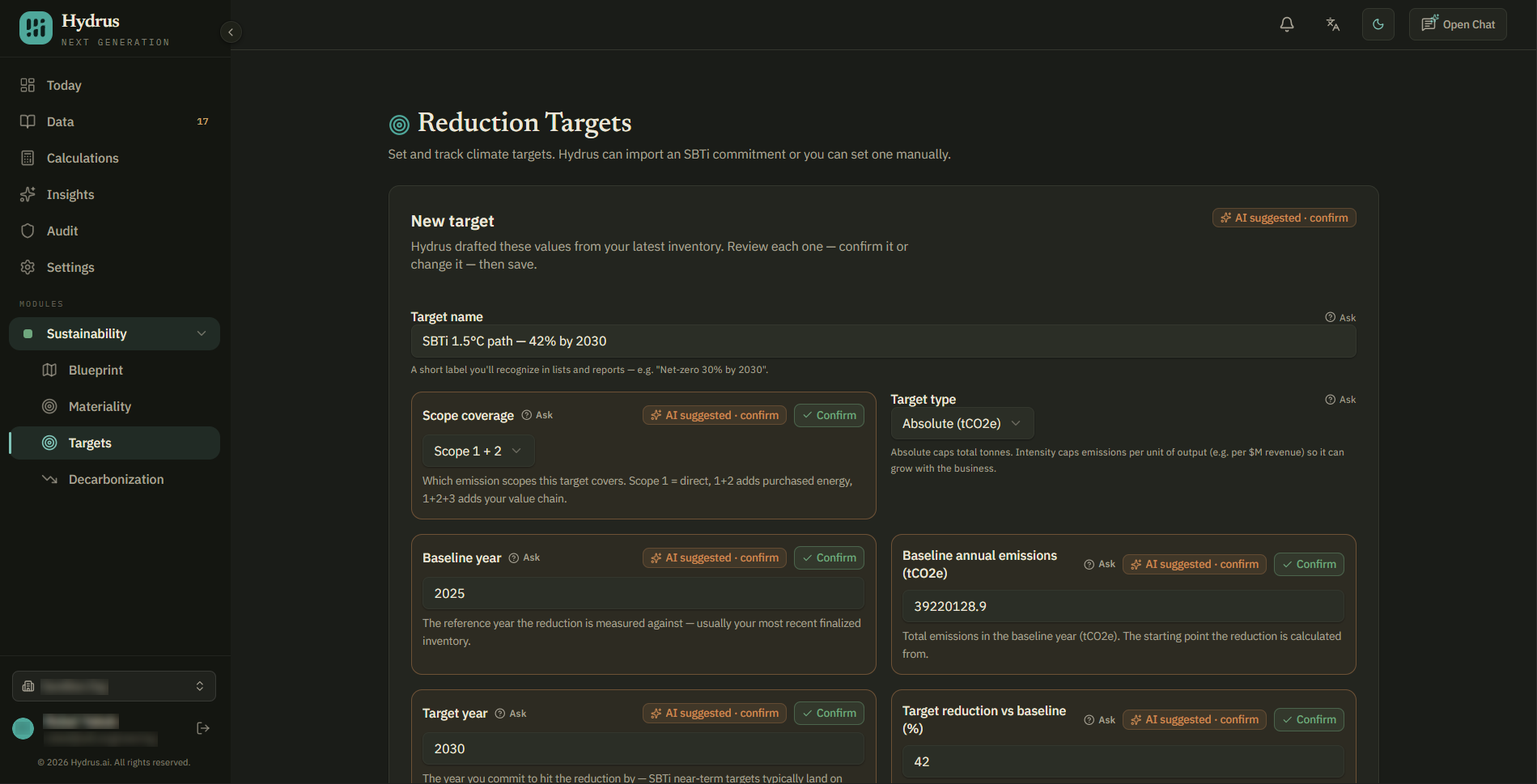
Once you have a target, use new target to add another from a blank form. Use draft with Hydrus to open a form filled in from your latest calculation.
Review a saved target
Select a target in Active targets. The header shows its baseline and target side by side, including the years and emissions amounts.
The chart shows a straight line from the baseline to the target. Below it:
- Gap to target shows how many tonnes need to be reduced from the baseline.
- Status shows the validation status saved with the target.
- Scopes shows the emissions scopes it covers.
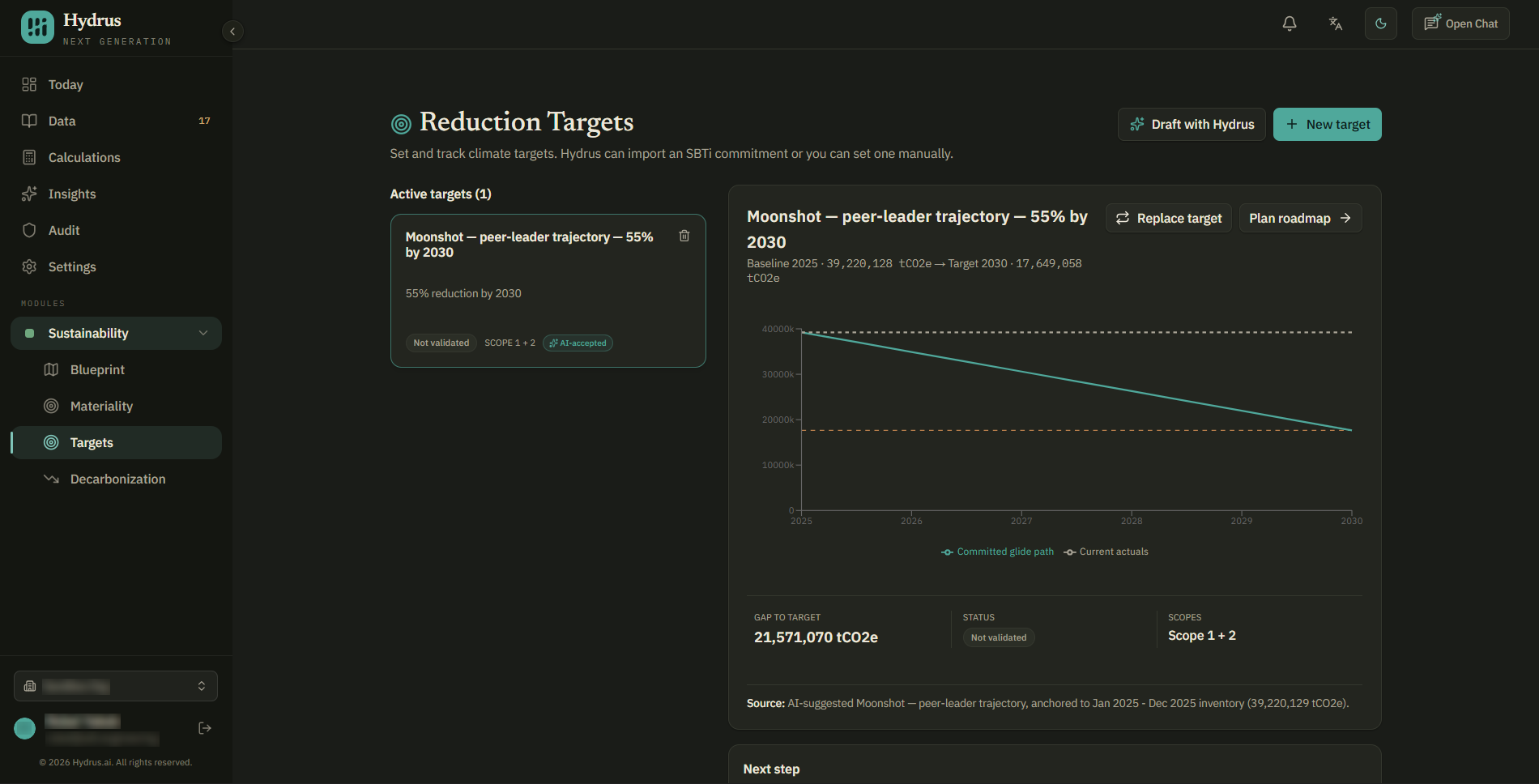
Select plan roadmap to open the Decarbonization Planner and add reduction projects. The planner uses the most recently created target, so check the target shown there if you have more than one active target.
If the baseline changes
When your latest calculation differs from the saved baseline by 3% or more, Hydrus shows Your baseline shifted, along with the size of the change.
The banner does not update your target. Select refresh suggestions to discuss new values in Hydrus chat. Closing the banner hides it for that target.
Check why the figures differ. If you want the target to use the new baseline, replace the target using the steps below. Until then, it continues to use the baseline saved with it.
Replace a saved target
Saved targets cannot be edited. Replace a target when you need to change its values and keep the original record.
- Open the target and select replace target.
- Check the Replacing: banner to confirm which target you are replacing.
- Choose a starting path and select select as replacement.
- Compare the current and new target in the confirmation window.
- Select confirm replacement.
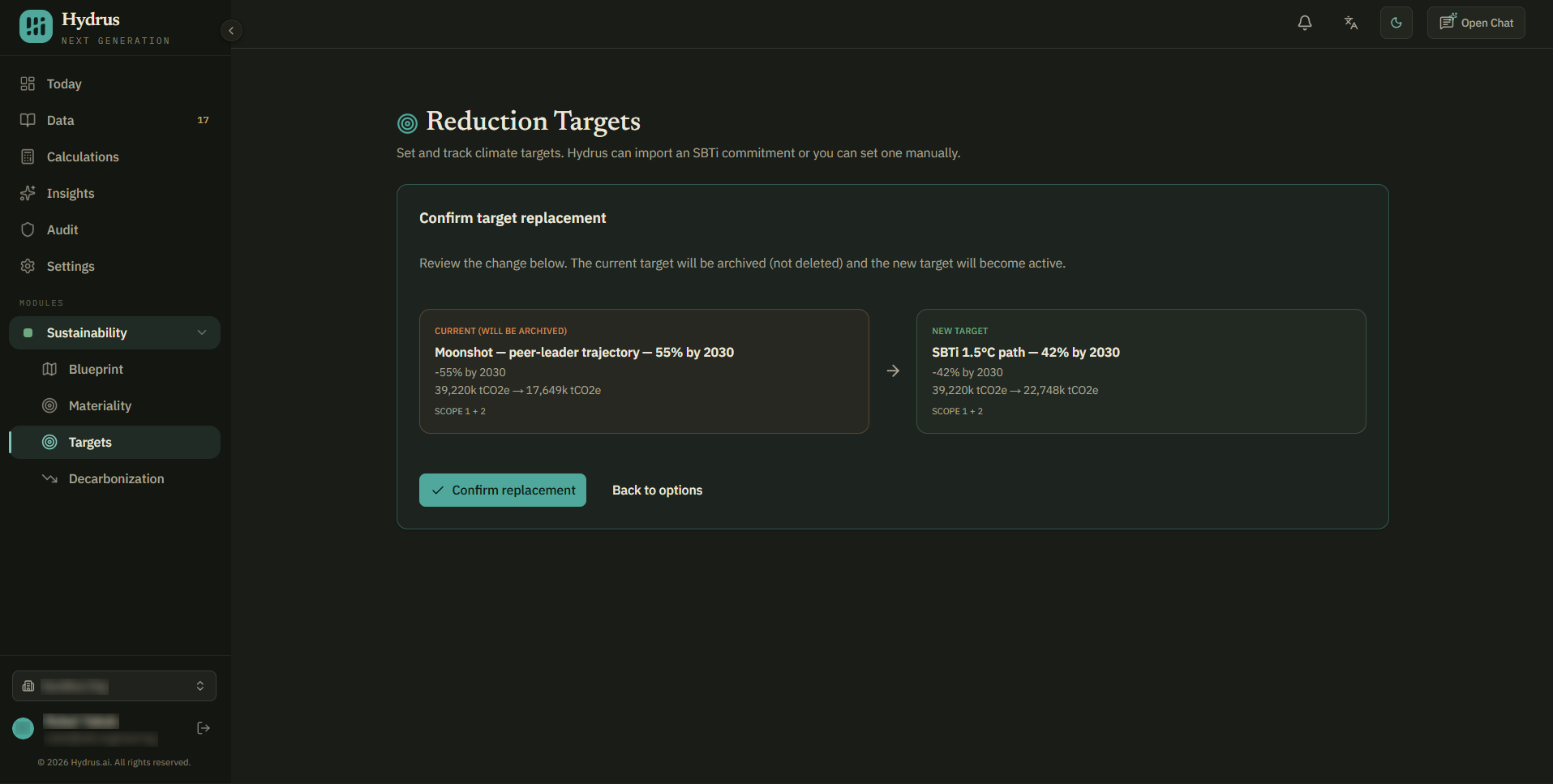
To adjust a path before using it, select customize instead. Saving the customized replacement also archives the old target. Select cancel replacement to leave the existing target unchanged.
After replacement, the old target appears under Archived targets with the date it was replaced. The new target shows Replaces a prior target.
The trash icon deletes a target immediately, without confirmation or an archived copy. Use it only for targets created by mistake. Use replacement when you need to keep the history.
Access and change history
Everyone in your organization can view active and archived targets. The audit trail records who created, accepted, replaced, or deleted a target and when.
Once you have checked the baseline, scopes, and validation status, build a roadmap of reduction projects.