Use People & access in Hydrus Settings to invite people, choose what they can do, and control which records they can see.
Each person has a role. Data Owners and Viewers also have limits on the records they can see, based on their facilities, groups, and record ownership.
Open People & access
- Open Settings from the sidebar.
- Select People & access. It opens on the Users tab.
The Team Members list shows each person's name, email, and role. Someone who has not signed in yet has an invited status.
Everyone can view the list. Only Admins can invite, edit, or remove users.
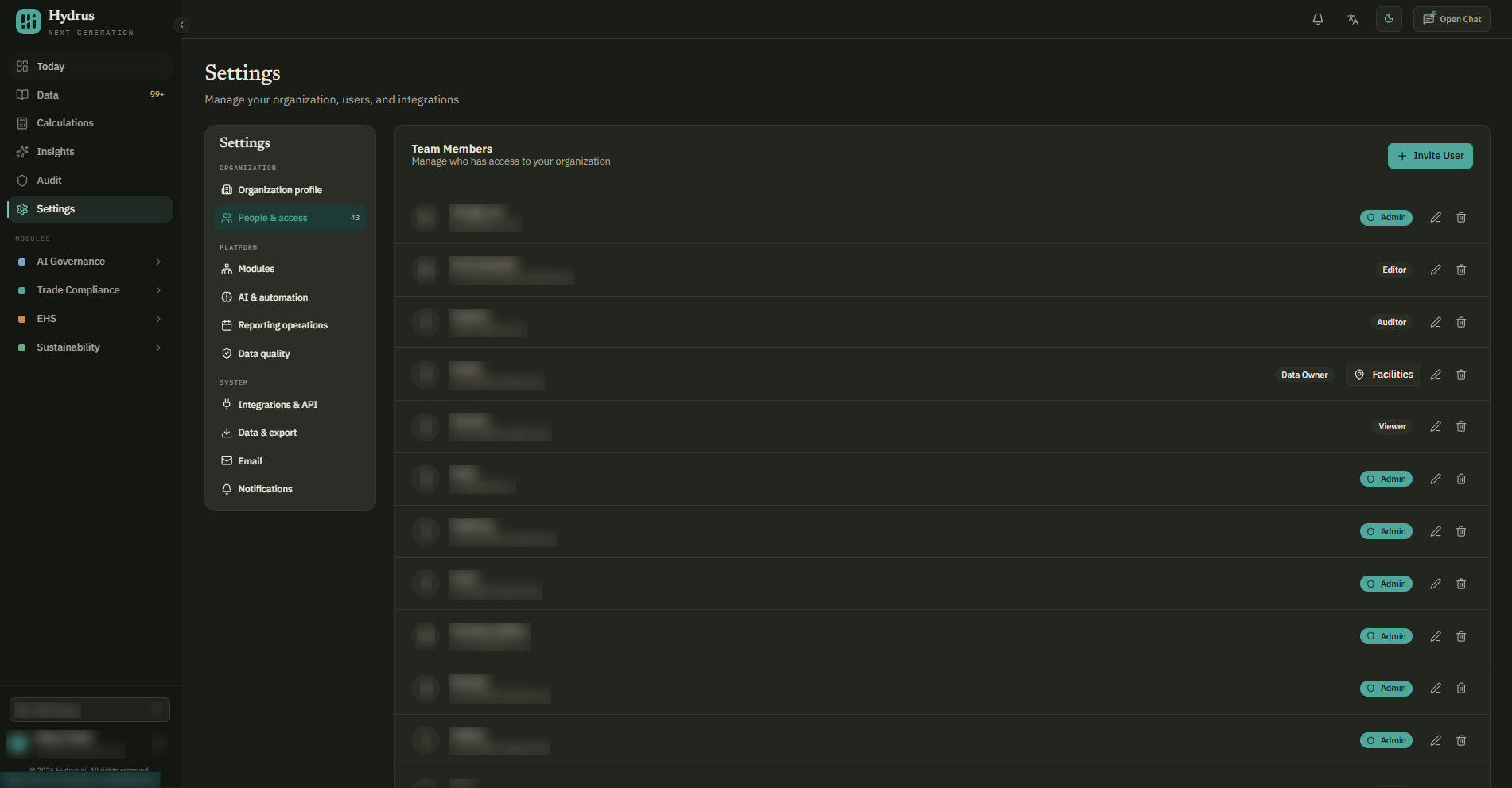
Choose a role
Choose the role that matches the person's work.
| Role | Use it for | What they can do |
|---|---|---|
| Admin | People responsible for the Hydrus setup. | Everything an Editor can do, plus manage users, groups, facility assignments, organization settings, and restatement approvals. |
| Editor | Analysts and sustainability leads. | Build, re-run, and finalize calculations; generate reports; send data requests; manage emission factors, targets, and scenarios; and read the audit trail. |
| Auditor | Internal auditors and external reviewers. | Read all records and the audit trail, export audit records, and leave comments. They cannot change data. |
| Data Owner | Site or department contacts who supply data. | Upload files and confirm, correct, or reject records they have access to. They cannot build calculations or reports, or open the audit trail. |
| Viewer | People who need to read records. | Read records they have access to. They cannot change them. |
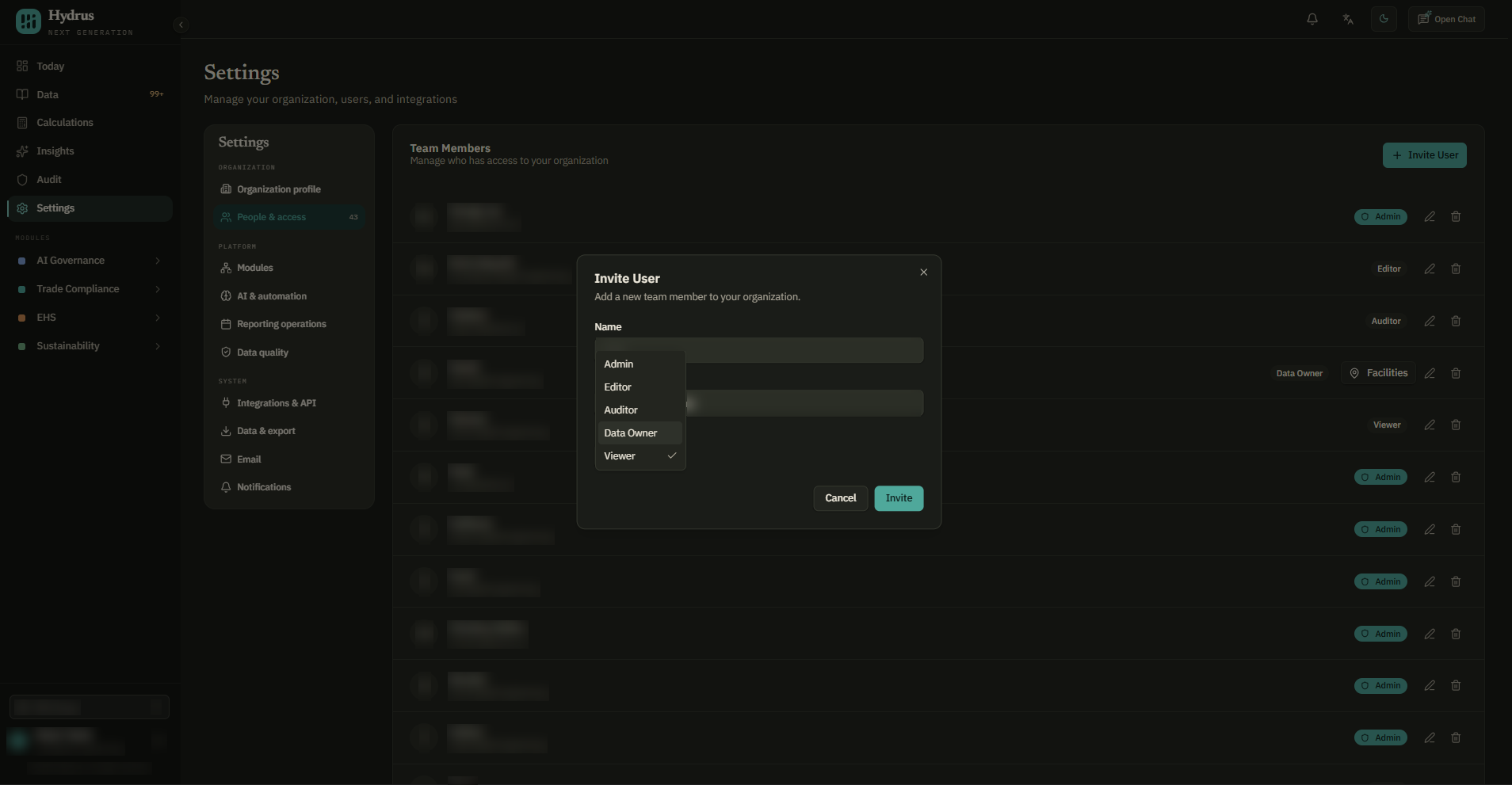
New invites default to Viewer. Check the role before sending an invite.
An external reviewer who needs to trace a reported number should have the Auditor role. They can follow changes in the audit trail without changing the data. See the audit trail guide.
Invite someone
You need the Admin role to invite users.
- On the Users tab, select invite user.
- Enter the person's name and email.
- Choose their role from the role menu.
- Select invite.
The person receives an invitation by email. They sign in using a one-time code sent to their email; they do not need to set a password. Their status changes from invited to active when they first sign in.
If the email cannot be sent, Hydrus does not create the invite. Try again. To send another invitation to someone who has not signed in, select resend on their row.
If the person already uses Hydrus with another organization, they get access immediately with the role you selected. Hydrus does not send an invite email in this case.
Change someone's name or role
- Find the person on the Users tab.
- Select the pencil button on their row.
- Change their name or role.
A role change applies from their next action in Hydrus.
Their email cannot be changed because it is their sign-in address. To use a different address, remove the old user and invite the new address.
You cannot lower your own role. Another Admin must do that.
Remove someone
Select the trash button on the person's row to remove their access.
They lose access to your organization immediately and are signed out. Their past actions remain in the audit trail.
You cannot remove yourself. Another Admin must do that. An Admin can change or remove another Admin, so keep at least two Admins who can manage access.
Assign facilities to a Data Owner
You need the Admin role to assign facilities. The facilities must already exist in the Directory; see the Directory guide if you need to add them.
- On the Users tab, find the Data Owner.
- Select facilities on their row.
- Tick the facilities they are responsible for.
- Select save.
The person can now work with records for those facilities. For example, assign the Monterrey plant to the person who checks its electricity bills.
Also check their groups. A group can give them access to additional facilities or records.
Understand group access
A group is a named team, such as Manufacturing or Finance. It can contain Hydrus users, external contacts, and facilities.
Groups help you control access and send data requests to a team.
| Person's role | Which records they can see |
|---|---|
| Admin, Editor, or Auditor | All records, regardless of group membership. |
| Data Owner or Viewer | Records they own, records assigned to their groups, and records for facilities assigned directly or available through a group. |
These are separate ways to get access. Assigning one facility does not prevent someone from seeing other records through their groups or record ownership.
When you send a data request to a group, everyone in it receives the email, including external contacts. The group's welcome title and message appear at the top of the email. See the internal data requests guide for the sending steps.
Create a group
Only Admins can create, edit, or delete groups.
- Open the Groups tab in Settings.
- Select create group.
- Enter a name and a short description of what the team is responsible for.
- Select create.
The group is ready for you to add people and facilities.
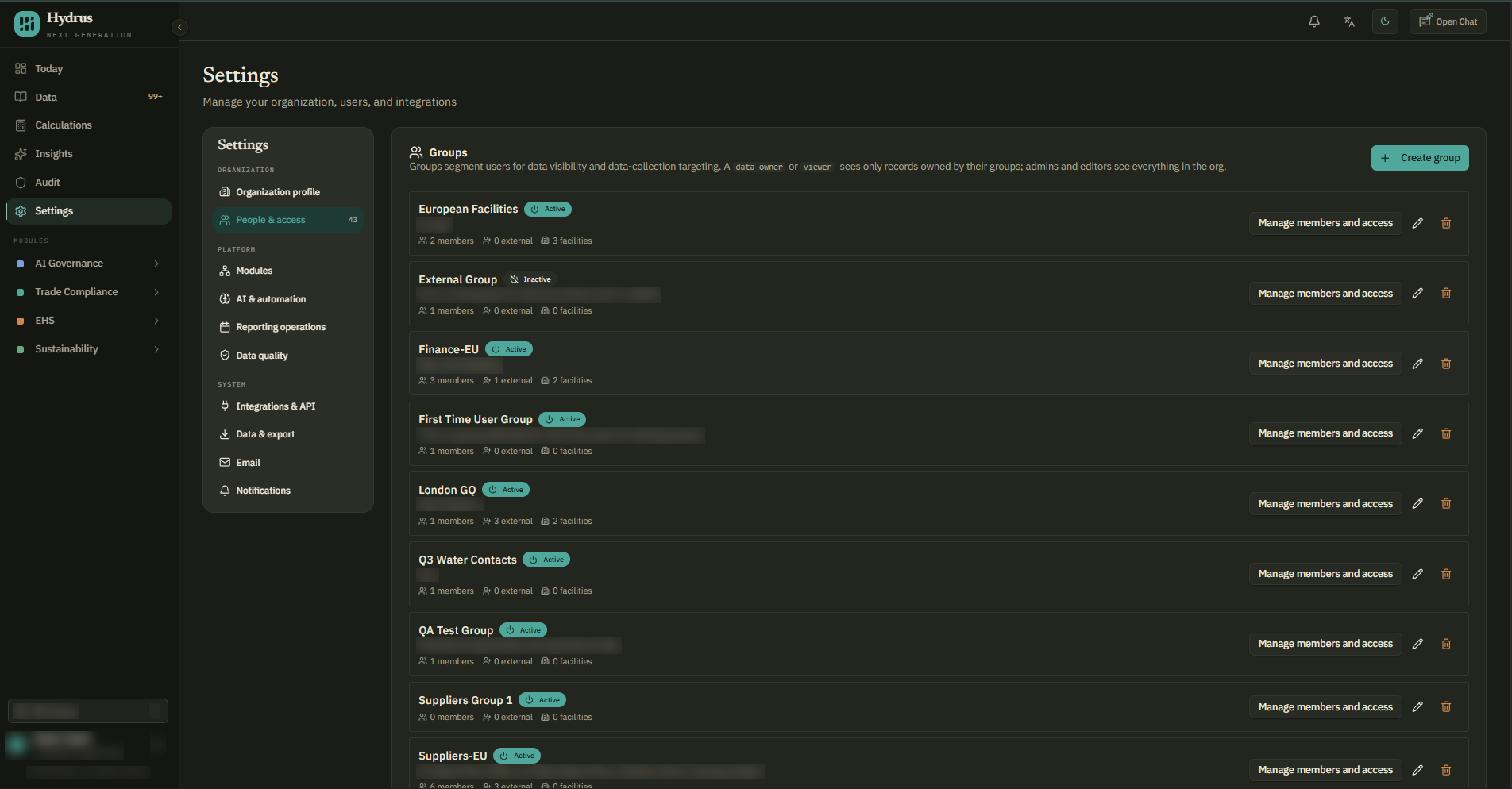
Add people and facilities to a group
Admins and Editors can manage group members and external contacts.
- Select manage members and access for the group.
- Choose the Members, External, or Facilities tab, depending on what you want to add.
- Select a name in the Available list to move it to the Assigned list.
Changes save as you make them. You do not need a separate save step.
Deleting a group removes its memberships. Its records remain, but anyone who could see them only through that group loses access to them.
Check the setup
After saving your changes, check that:
- The people responsible for calculations have the right role to finalize them.
- Each Data Owner's facilities and groups give them the records they need.
- Reviewers who need the audit trail have the Auditor role.
- Each group's member list includes the people who should receive its data requests.
- At least two people have the Admin role.
Everyone can view the Users and Groups lists. Only Admins can manage users and create, edit, or delete groups. Admins and Editors can manage group members and external contacts.
Changes to users and groups are recorded in the audit trail, including invites, old and new roles, removals, and membership changes.