Hydrus checks uploaded data for possible problems, such as a missing month, an unusual electricity bill, or a duplicate invoice. Each flagged issue appears as a finding for your team to review.
To review a finding, compare the data with the original file, fix any errors, and save your decision. Closing the finding marks it as resolved or dismissed. If the data is wrong, you must correct the record separately.
Find the issues that need review
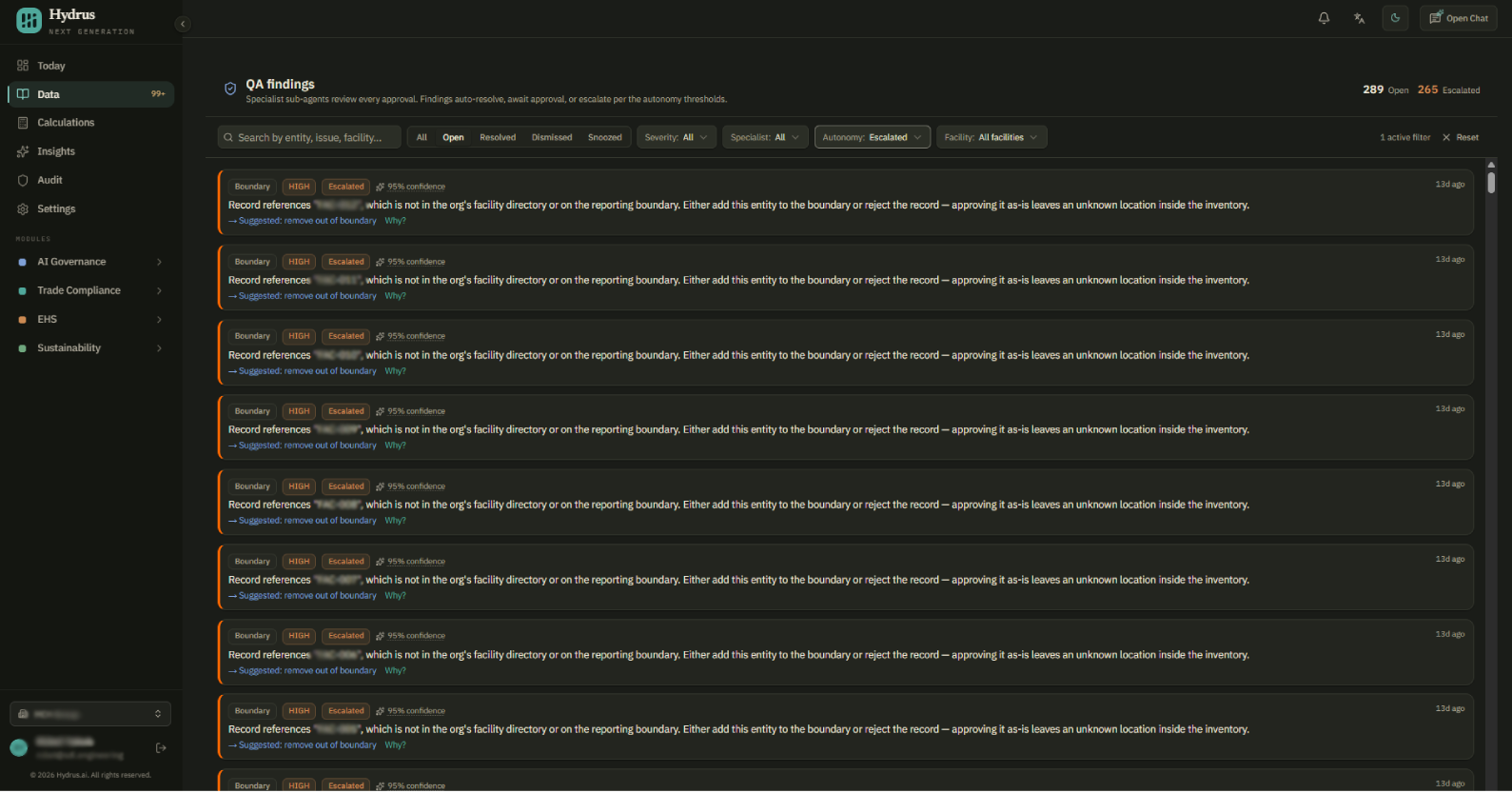
Open the QA findings page from one of these places:
- On the Today page, select review next to the open findings count.
- While reviewing an upload, follow the link to its open findings.
- Open a notification about a flagged record or upload review.
The page shows open findings by default, with the newest first. Start with escalated in the autonomy filter, then review critical and high findings for the facilities in your report.
| Filter | Use it to find |
|---|---|
| Status | Open, resolved, dismissed, or snoozed findings. Choose all to see every status. |
| Severity | Issues by importance, from info to critical. |
| Specialist | Findings raised by a particular check. |
| Autonomy | Findings awaiting approval, escalated for review, or closed automatically. |
| Facility | Findings for a particular site. |
Use search to find a facility, category, vendor, factor, or wording in an issue. Select reset to clear the filters. A count of zero means no findings match the filters; it does not prove the data is error-free.
For the earlier upload steps, see reviewing uploaded data.
Check the finding against the source
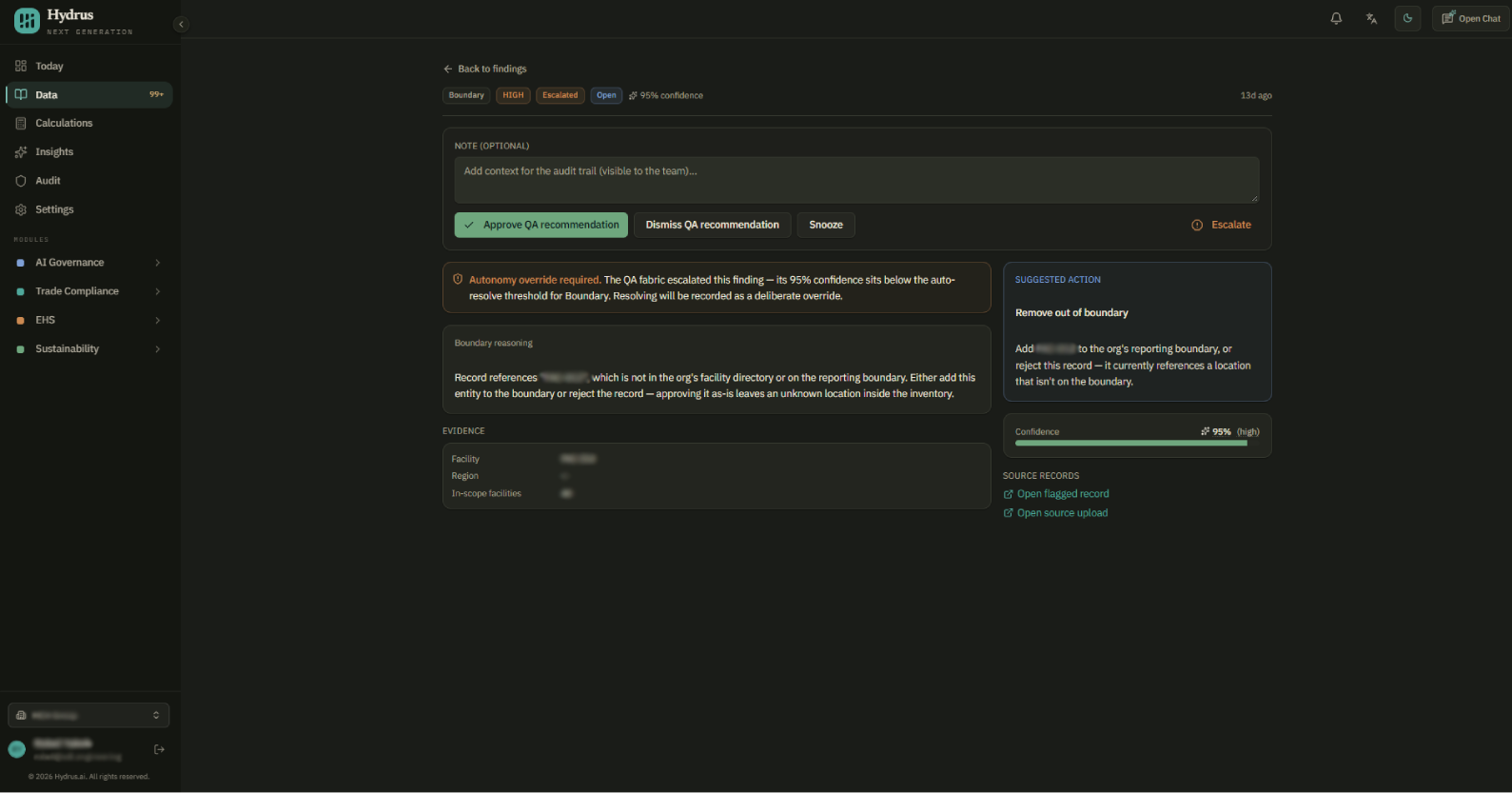
- Select a finding to open its details.
- Read why Hydrus flagged it. Check the comparison evidence and any suggested action.
- Select open flagged record to see the data, then open source upload to compare it with the original file.
- Check the value, unit, facility, and reporting period.
- If something is wrong, correct the record or upload through the relevant data-review workflow. Then return to the finding to save your decision.
For example, Hydrus may flag a high March electricity value. Compare it with the bill. If the record says 50,000 kWh but the bill says 5,000 kWh, correct the record. If the value and unit match, check whether increased production explains the higher use.
The confidence score tells you how confident the check is about its assessment. You still need to check the evidence before deciding what to do.
Save your decision
Add a note saying what you checked, what you found, and what you corrected, if anything. Your team can see the note in the audit trail, which keeps a history of changes and decisions.
For example: "Compared March electricity use with the bill. Corrected the record from 50,000 to 5,000 kWh."
Choose the action that matches your decision:
| Action | When to use it | What happens |
|---|---|---|
| Approve QA recommendation | You agree with the suggested action. | Saves your approval and closes the finding. It does not correct the data. |
| Resolve QA recommendation | There is no suggested action and you have completed the review. | Saves your decision and closes the finding. This replaces the approve button when no action is suggested. |
| Dismiss QA recommendation | You checked the evidence and no action is needed. | Saves your dismissal and closes the finding. |
| Snooze | You need more information or time. | Postpones review until someone reopens the finding. |
If the finding was escalated, complete the confirmation prompt. Closing it overrides the check's request for review, and Hydrus records that decision in the audit trail.
Check the finding's status afterward. If it disappears from the open list, use resolved or dismissed to find it. Use reopen if it needs another review.
Correcting data does not automatically close its finding. Closing a finding does not correct its data. Complete both actions when a correction is needed.
Close similar findings together
When at least three open findings come from the same check and have the same suggested action, a banner offers to close them together.
- Review each finding and confirm that the same decision applies to all of them.
- Select approve all or dismiss all.
Hydrus closes the group and saves one audit-trail entry for the batch. Make any required data corrections separately.
Understand what Hydrus checks
Hydrus compares new records with up to 18 months of earlier data for the same facility and category.
| Check | What it flags |
|---|---|
| Plausibility | A value much higher or lower than usual. Drops during a recorded facility shutdown are excluded. |
| Unit consistency | A unit change, such as MWh instead of the usual kWh. |
| Completeness | A missing month or quarter between periods with data. |
| Methodology drift | A switch between reporting quantities, such as litres of fuel, and reporting spending. |
| Factor selection | An emission factor at least three years older than the data, or one with a region, scope, or unit that does not match. |
| Boundary | A facility in the record that is missing from the Directory, where facilities are maintained. |
| Duplicate transactions | Another record with the same vendor, amount, and date. |
| Duplicate records | An exact match to data already approved. |
A finding does not always mean the data is wrong. Higher electricity use may reflect increased production, for example, and a unit change may be intentional.
Some findings close automatically when confidence is high and the proposed fix is low risk, such as an exact duplicate. Critical findings always require a person to review them.
Review an emission factor
An emission factor converts a quantity or spending amount into estimated emissions. For a factor-selection finding, check that the factor fits:
- The region or electricity grid.
- The year of the data.
- The activity and unit.
- The emissions scope and the activities included in the calculation.
- The source and supporting information.
Hydrus selects a best match from the available information. Review whether it suits the record; a better-supported factor may be more appropriate.
Check that the review is complete
Before using the affected data in a calculation, check that:
- Critical and high findings for the relevant facilities have been reviewed, and remaining issues are identified.
- A person has reviewed every escalated finding.
- Wrong data has been corrected in the record or upload.
- Reviewed findings have notes and the intended resolved or dismissed status.
- Snoozed findings that still need review are visible to the team.
Running a check again on the same data does not reopen findings already resolved or dismissed.
Manage checks and access
To turn checks on or off, open Settings and go to Data quality. Only Admins can save these changes. Turning a check off stops new findings from that check; review the issues it has already raised separately.
| Role | What they can do |
|---|---|
| Admin, Editor, Data Owner | View, approve, dismiss, snooze, and reopen findings. |
| Viewer, Auditor | View findings. They cannot close them. |